[et_pb_section fb_built=”1″ _builder_version=”4.16″ collapsed=”on” global_colors_info=”{}”][et_pb_row _builder_version=”4.16″ _module_preset=”default” global_colors_info=”{}”][et_pb_column type=”4_4″ _builder_version=”4.16″ _module_preset=”default” global_colors_info=”{}”][et_pb_text _builder_version=”4.16″ _module_preset=”default” global_colors_info=”{}”]
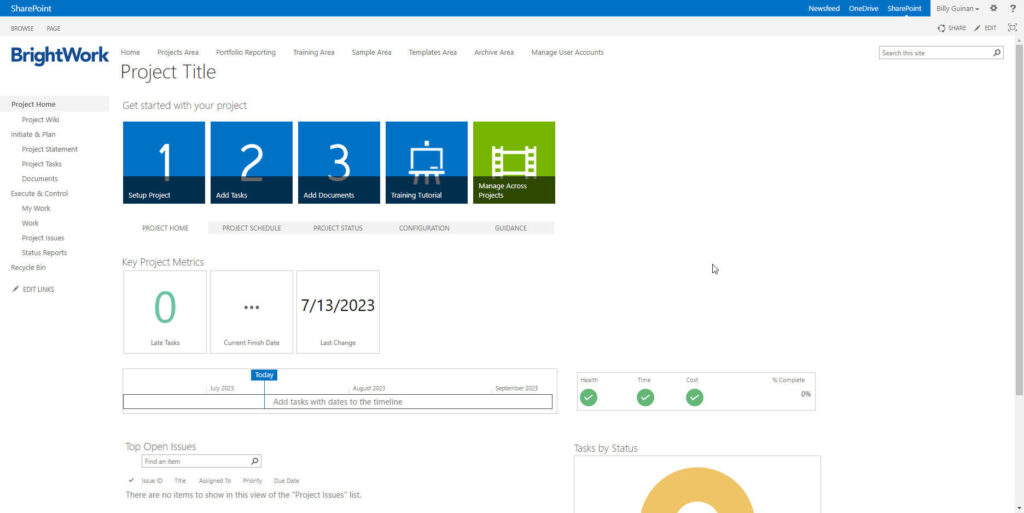
In SharePoint, a project site is a dedicated site or subsite that is created to support the management and collaboration of a specific project. It provides a centralized location for project teams to organize, share, and collaborate on project-related information, documents, tasks, and discussions. This blog post will cover how to create a project site in SharePoint 2016, SharePoint 2019, or SharePoint Online using the free template from BrightWork.
A SharePoint project site typically includes various components and features tailored for project management, such as:
- Document Libraries
- Task Lists
- Calendars
- Discussions and Announcements
- Issue Tracking
- Project Summary Web Parts
- Integration with Office Tools
If you have some SharePoint knowledge and the right permission, you could create a project site in SharePoint and configure all of the key elements yourself.
That is where BrightWork comes in – we have done the entire configuration for you in our SharePoint Project Management Template. We have taken all the elements list above and wrapped them up in a neat template that is pre-configured for project management and based on best practices.
Note: If you are using SharePoint 2019 or SharePoint Online – you will need to first create a SharePoint classic site collection in order to use this template and follow the steps in this guide.
[/et_pb_text][/et_pb_column][/et_pb_row][et_pb_row column_structure=”2_3,1_3″ _builder_version=”4.16″ _module_preset=”default” custom_margin=”45px||||false|false” locked=”off” collapsed=”on” global_colors_info=”{}”][et_pb_column type=”2_3″ _builder_version=”4.16″ _module_preset=”default” global_colors_info=”{}”][et_pb_text _builder_version=”4.16″ _module_preset=”default” background_color=”#f2f2f2″ custom_padding=”15px|15px|15px|15px|false|false” global_colors_info=”{}”]
Jump to a Section
- Step 1: Install the Template in Your SharePoint Environment
- Step 1A: Create a Classic Site Collection in SharePoint 2019/SharePoint Online
- Step 2: Create a New Project Site Based on SharePoint Template
- Microsoft 365 and Power Platform – Using More than Just SharePoint for Project Management
Read the SharePoint Project Management Guide
[/et_pb_text][/et_pb_column][et_pb_column type=”1_3″ _builder_version=”4.16″ _module_preset=”default” global_colors_info=”{}”][/et_pb_column][/et_pb_row][/et_pb_section][et_pb_section fb_built=”1″ admin_label=”CTA Free Template” _builder_version=”4.16″ _module_preset=”default” background_enable_color=”off” locked=”off” collapsed=”on” global_colors_info=”{}”][et_pb_row column_structure=”1_2,1_2″ _builder_version=”4.16″ _module_preset=”default” background_color=”#d4f5ea” custom_padding=”45px|45px|45px|45px|false|false” border_radii=”on|15px|15px|15px|15px” global_colors_info=”{}”][et_pb_column type=”1_2″ _builder_version=”4.16″ _module_preset=”default” global_colors_info=”{}”][et_pb_text _builder_version=”4.16″ _module_preset=”default” header_font=”Montserrat||||||||” custom_padding=”||||false|false” global_colors_info=”{}”]
Get a Free SharePoint Project Management Template
Download your SharePoint template that is pre-designed to manage a project.
[/et_pb_text][et_pb_button button_url="https://bw.hosting.24.ie/product/free-sharepoint-project-management-templates?oc=C-01252-H9V0" button_text="Get Free Template" button_alignment="left" _builder_version="4.16" _module_preset="default" custom_button="on" button_text_color="#FFFFFF" button_bg_color="#1e90ff" button_font="|600|||||||" custom_margin="10px||||false|false" custom_padding="8px|30px|8px|30px|false|false" locked="off" global_colors_info="{}"][/et_pb_button][/et_pb_column][et_pb_column type="1_2" _builder_version="4.16" _module_preset="default" global_colors_info="{}"][et_pb_image src="https://bw.hosting.24.ie/wp-content/uploads/2020/07/Free-Template.png" alt="BrightWork Free SharePoint Project Management Template" title_text="Free Template" align="center" _builder_version="4.16" _module_preset="default" width="75%" max_height="250px" box_shadow_style="preset2" global_colors_info="{}"][/et_pb_image][/et_pb_column][/et_pb_row][/et_pb_section][et_pb_section fb_built="1" admin_label="Install" module_id="install" _builder_version="4.16" _module_preset="default" collapsed="on" global_colors_info="{}"][et_pb_row _builder_version="4.16" _module_preset="default" global_colors_info="{}"][et_pb_column type="4_4" _builder_version="4.16" _module_preset="default" global_colors_info="{}"][et_pb_text _builder_version="4.16" _module_preset="default" global_colors_info="{}"]
Step 1: Install the Template in Your SharePoint Environment
[/et_pb_text][/et_pb_column][/et_pb_row][et_pb_row _builder_version=”4.16″ _module_preset=”default” custom_margin=”25px||25px||false|false” collapsed=”on” global_colors_info=”{}”][et_pb_column type=”4_4″ _builder_version=”4.16″ _module_preset=”default” global_colors_info=”{}”][et_pb_text _builder_version=”4.16″ _module_preset=”default” global_colors_info=”{}”]
1. Download the SharePoint Project Management Template from BrightWork here.
2. Unzip the downloaded folder and save the SharePoint template (.wsp file) to a suitable location on your desktop.
3. Log in as a Site Collection Administrator* to the chosen on-premises Site Collection.
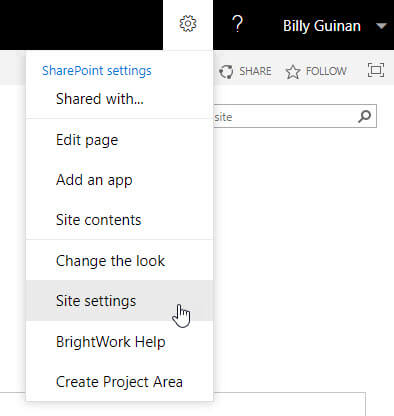
4. Click Settings | Site settingson the site collection home page.
[/et_pb_text][et_pb_image src="https://bw.hosting.24.ie/wp-content/uploads/2023/07/sharepoint-site-settings-option.jpg" title_text="sharepoint site settings option" _builder_version="4.16" _module_preset="default" custom_margin="25px||25px||false|false" box_shadow_style="preset1" global_colors_info="{}"][/et_pb_image][et_pb_text _builder_version="4.16" _module_preset="default" global_colors_info="{}"]
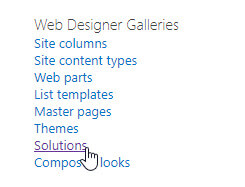
4. Click Solutions.
[/et_pb_text][et_pb_image src="https://bw.hosting.24.ie/wp-content/uploads/2023/07/shrepoint-web-designer-galleries.jpg" title_text="shrepoint web designer galleries" _builder_version="4.16" _module_preset="default" custom_margin="25px||25px||false|false" box_shadow_style="preset1" global_colors_info="{}"][/et_pb_image][et_pb_text _builder_version="4.16" _module_preset="default" global_colors_info="{}"]
Note: if you can’t see Solutions here, make sure you are not trying to add the template to a subsite.
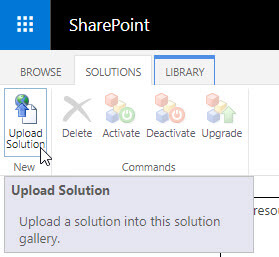
5. Select the Solutions Taband click Upload Solution.
[/et_pb_text][et_pb_image src="https://bw.hosting.24.ie/wp-content/uploads/2023/07/sharepoint-upload-a-solution.jpg" title_text="sharepoint upload a solution" _builder_version="4.16" _module_preset="default" custom_margin="25px||25px||false|false" box_shadow_style="preset1" global_colors_info="{}"][/et_pb_image][et_pb_text _builder_version="4.16" _module_preset="default" global_colors_info="{}"]
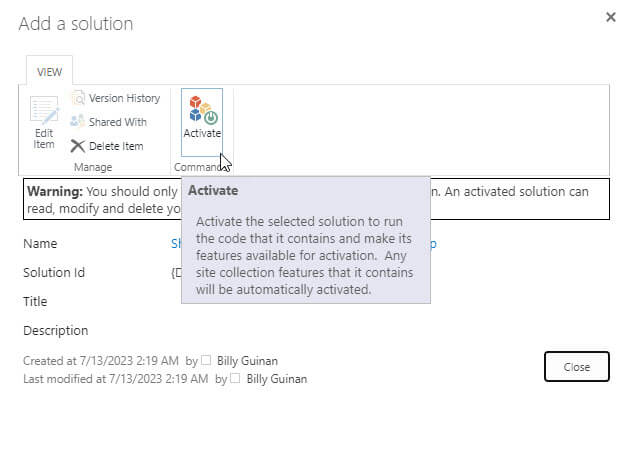
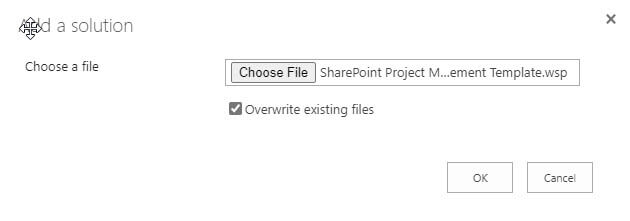
6. Click Browse and navigate to the location where you unzipped the downloaded file.
7. Select the SharePoint Project Management Template.wsp file, and click OK.
[/et_pb_text][et_pb_image src="https://bw.hosting.24.ie/wp-content/uploads/2023/07/sharepoint-add-a-solution.jpg" title_text="sharepoint add a solution" _builder_version="4.16" _module_preset="default" custom_margin="25px||25px||false|false" box_shadow_style="preset1" global_colors_info="{}"][/et_pb_image][et_pb_text _builder_version="4.16" _module_preset="default" global_colors_info="{}"]
8. Click Activate.
[/et_pb_text][et_pb_image src="https://bw.hosting.24.ie/wp-content/uploads/2023/07/sharepoint-activate-solution.jpg" title_text="sharepoint activate solution" _builder_version="4.16" _module_preset="default" custom_margin="25px||25px||false|false" box_shadow_style="preset1" global_colors_info="{}"][/et_pb_image][et_pb_text _builder_version="4.16" _module_preset="default" global_colors_info="{}"]
Your template is now installed!
* Site Collection Administrator is the permission level required to add a SharePoint solution to a site collection. If you need a higher permission level to install the free template, simply contact your SharePoint Administrator.
[/et_pb_text][/et_pb_column][/et_pb_row][/et_pb_section][et_pb_section fb_built=”1″ admin_label=”Classic Site Collection” module_id=”classic” _builder_version=”4.16″ _module_preset=”default” collapsed=”on” global_colors_info=”{}”][et_pb_row _builder_version=”4.16″ _module_preset=”default” global_colors_info=”{}”][et_pb_column type=”4_4″ _builder_version=”4.16″ _module_preset=”default” global_colors_info=”{}”][et_pb_text _builder_version=”4.16″ _module_preset=”default” global_colors_info=”{}”]
Step 1A: Create a Classic Site Collection in SharePoint 2019/SharePoint Online
[/et_pb_text][et_pb_text _builder_version=”4.16″ _module_preset=”default” global_colors_info=”{}”]
1. Log in as a Site Collection Administrator to the SharePoint Admin Center in Office 365.
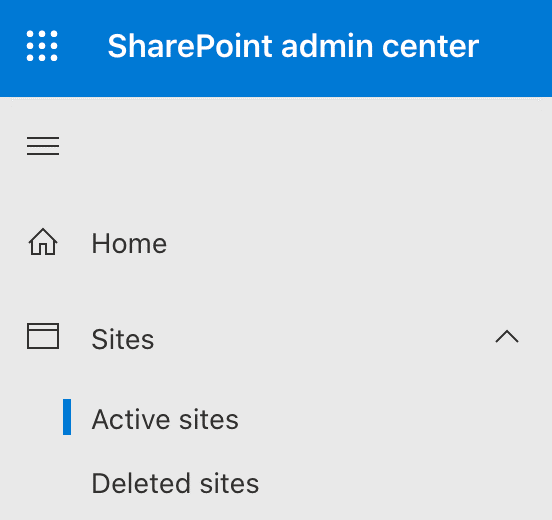
2. On the left hand side, click Sitesand then Active Sites.
[/et_pb_text][et_pb_image src="https://bw.hosting.24.ie/wp-content/uploads/2023/07/sharepoint-admin-center-active-sites.png" title_text="sharepoint admin center active sites" admin_label="Image" _builder_version="4.16" _module_preset="default" custom_margin="25px||25px||false|false" box_shadow_style="preset1" global_colors_info="{}"][/et_pb_image][et_pb_text _builder_version="4.16" _module_preset="default" global_colors_info="{}"]
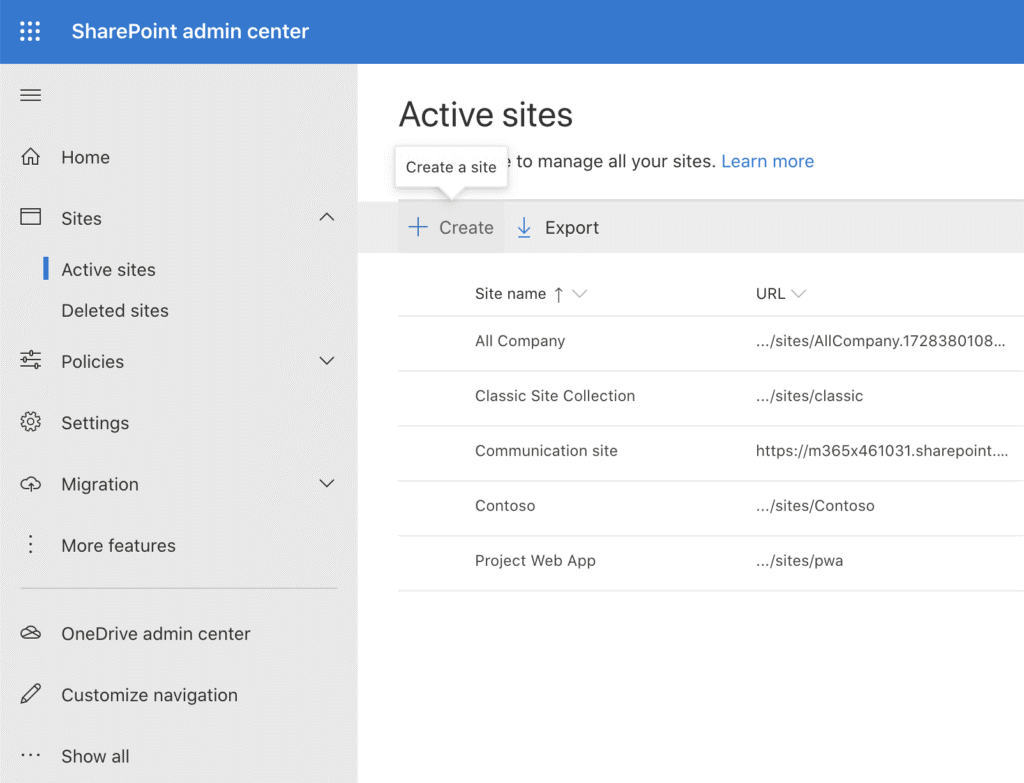
3. Click + Create.
[/et_pb_text][et_pb_image src="https://bw.hosting.24.ie/wp-content/uploads/2023/07/sharepoint-admin-center-create-site.png" title_text="sharepoint admin center create site" admin_label="Image" _builder_version="4.16" _module_preset="default" custom_margin="25px||25px||false|false" box_shadow_style="preset1" global_colors_info="{}"][/et_pb_image][et_pb_text _builder_version="4.16" _module_preset="default" global_colors_info="{}"]
4. Select Other Options.
[/et_pb_text][et_pb_image src="https://bw.hosting.24.ie/wp-content/uploads/2023/07/sharepoint-admin-center-other-options.png" title_text="sharepoint admin center other options" admin_label="Image" _builder_version="4.16" _module_preset="default" custom_margin="25px||25px||false|false" box_shadow_style="preset1" global_colors_info="{}"][/et_pb_image][et_pb_text _builder_version="4.16" _module_preset="default" global_colors_info="{}"]
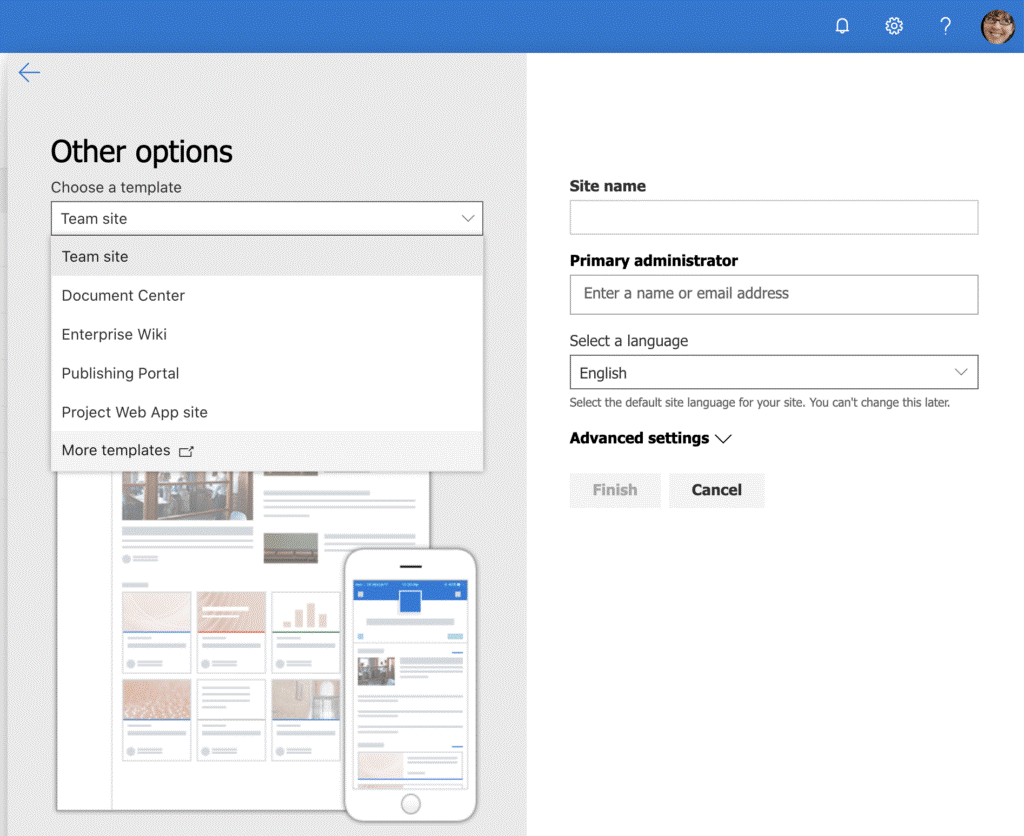
5. From the dropdown, select More templates (this will open in a new tab).
[/et_pb_text][et_pb_image src="https://bw.hosting.24.ie/wp-content/uploads/2023/07/sharepoint-admin-center-more-templates.png" title_text="sharepoint admin center more templates" admin_label="Image" _builder_version="4.16" _module_preset="default" custom_margin="25px||25px||false|false" box_shadow_style="preset1" global_colors_info="{}"][/et_pb_image][et_pb_text _builder_version="4.16" _module_preset="default" global_colors_info="{}"]
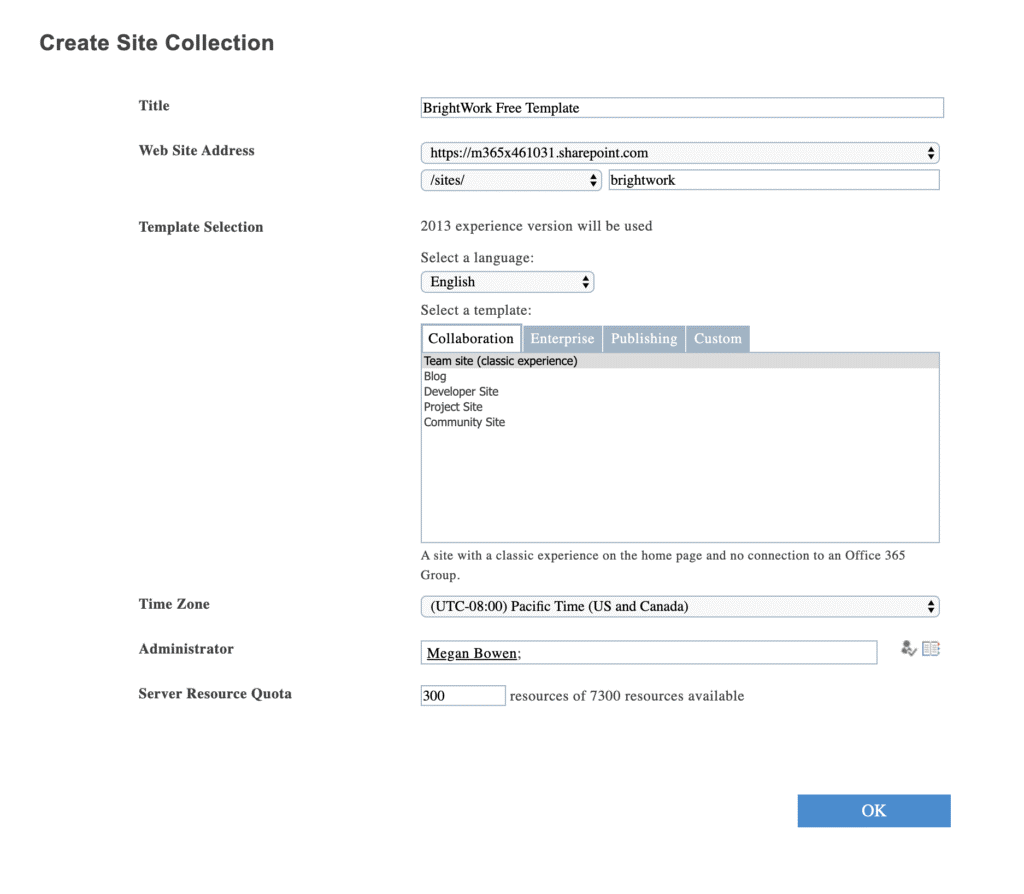
6. Add the Title, Web address, and Administrator information for your site collection. Under Template Selection, select Team site (classic experience).
[/et_pb_text][et_pb_image src="https://bw.hosting.24.ie/wp-content/uploads/2023/07/sharepoint-admin-center-team-site-classic-experience.png" title_text="sharepoint admin center team site classic experience" admin_label="Image" _builder_version="4.16" _module_preset="default" custom_margin="25px||25px||false|false" box_shadow_style="preset1" global_colors_info="{}"][/et_pb_image][/et_pb_column][/et_pb_row][/et_pb_section][et_pb_section fb_built="1" admin_label="Create Project Site" module_id="create" _builder_version="4.16" _module_preset="default" collapsed="on" global_colors_info="{}"][et_pb_row _builder_version="4.16" _module_preset="default" global_colors_info="{}"][et_pb_column type="4_4" _builder_version="4.16" _module_preset="default" global_colors_info="{}"][et_pb_text _builder_version="4.16" _module_preset="default" global_colors_info="{}"]
Step 2: Create a Project Site in SharePoint Based on a Template
[/et_pb_text][et_pb_text _builder_version=”4.16″ _module_preset=”default” global_colors_info=”{}”]
1. Navigate to the location in the Site Collection Hierarchy where you want to create the new Project Site.
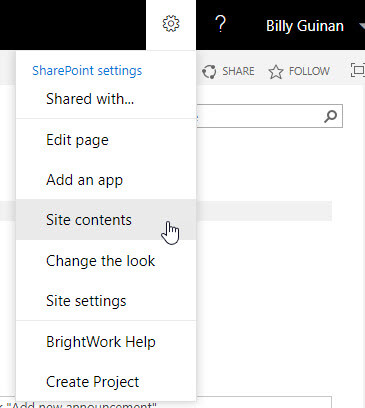
2. Click Settings | Site contents.
[/et_pb_text][et_pb_image src="https://bw.hosting.24.ie/wp-content/uploads/2023/07/sharepoint-site-contents-option.jpg" title_text="sharepoint site contents option" admin_label="Image" _builder_version="4.16" _module_preset="default" custom_margin="25px||25px||false|false" box_shadow_style="preset1" global_colors_info="{}"][/et_pb_image][et_pb_text _builder_version="4.16" _module_preset="default" global_colors_info="{}"]
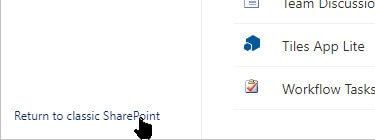
Note: If you are using SharePoint 2016 or 2019, click Return to classic SharePoint next.
[/et_pb_text][et_pb_image src="https://bw.hosting.24.ie/wp-content/uploads/2023/07/sharepoint-return-to-classic.jpg" title_text="sharepoint return to classic" admin_label="Image" _builder_version="4.16" _module_preset="default" custom_margin="25px||25px||false|false" box_shadow_style="preset1" global_colors_info="{}"][/et_pb_image][et_pb_text _builder_version="4.16" _module_preset="default" global_colors_info="{}"]
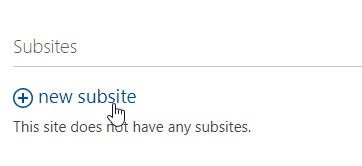
3. Click new subsite.
[/et_pb_text][et_pb_image src="https://bw.hosting.24.ie/wp-content/uploads/2023/07/sharepoint-new-subsite.jpg" title_text="sharepoint new subsite" admin_label="Image" _builder_version="4.16" _module_preset="default" custom_margin="25px||25px||false|false" box_shadow_style="preset1" global_colors_info="{}"][/et_pb_image][et_pb_text _builder_version="4.16" _module_preset="default" global_colors_info="{}"]
4. Give the new site a Title and URL.
5. Click the Customtab.
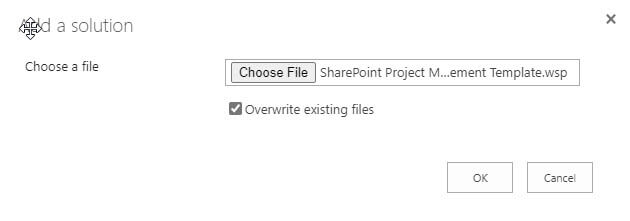
6. Select SharePoint Project Management Template.
[/et_pb_text][et_pb_image src="https://bw.hosting.24.ie/wp-content/uploads/2023/07/sharepoint-add-a-solution.jpg" title_text="sharepoint add a solution" admin_label="Image" _builder_version="4.16" _module_preset="default" custom_margin="25px||25px||false|false" box_shadow_style="preset1" global_colors_info="{}"][/et_pb_image][et_pb_text _builder_version="4.16" _module_preset="default" global_colors_info="{}"]
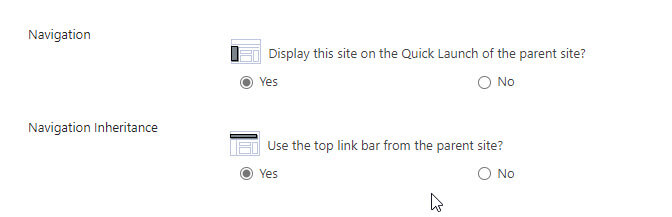
7. Select the appropriate Navigation and Navigation Inheritance options for your environment. The defaults selected in your environment are fine.
[/et_pb_text][et_pb_image src="https://bw.hosting.24.ie/wp-content/uploads/2023/07/shaepoint-site-inherit-permissions.jpg" title_text="shaepoint site inherit permissions" admin_label="Image" _builder_version="4.16" _module_preset="default" custom_margin="25px||25px||false|false" box_shadow_style="preset1" global_colors_info="{}"][/et_pb_image][et_pb_text _builder_version="4.16" _module_preset="default" global_colors_info="{}"]
8. Click Create.
[/et_pb_text][et_pb_image src="https://bw.hosting.24.ie/wp-content/uploads/2023/07/create-sharepoint-site.jpg" title_text="create sharepoint site" admin_label="Image" _builder_version="4.16" _module_preset="default" custom_margin="25px||25px||false|false" box_shadow_style="preset1" global_colors_info="{}"][/et_pb_image][et_pb_text _builder_version="4.16" _module_preset="default" global_colors_info="{}"]
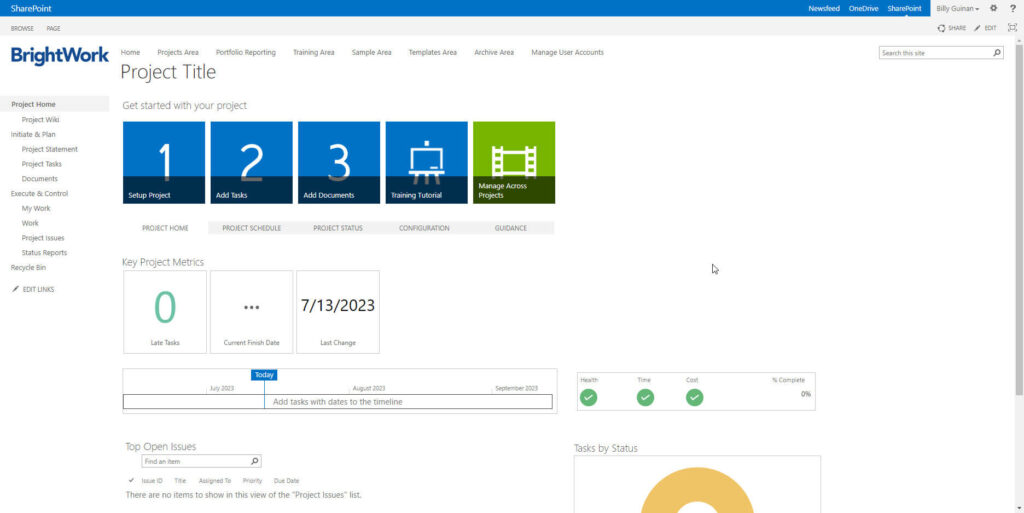
Wait a few moments and your new project site will be created!
[/et_pb_text][et_pb_image src="https://bw.hosting.24.ie/wp-content/uploads/2023/07/new-sharepoint-project-site.jpg" title_text="new sharepoint project site" admin_label="Image" _builder_version="4.16" _module_preset="default" custom_margin="25px||25px||false|false" box_shadow_style="preset1" global_colors_info="{}"][/et_pb_image][/et_pb_column][/et_pb_row][/et_pb_section][et_pb_section fb_built="1" admin_label="CTA Free Template" _builder_version="4.16" _module_preset="default" background_enable_color="off" locked="off" collapsed="on" global_colors_info="{}"][et_pb_row column_structure="1_2,1_2" _builder_version="4.16" _module_preset="default" background_color="#d4f5ea" custom_padding="45px|45px|45px|45px|false|false" border_radii="on|15px|15px|15px|15px" global_colors_info="{}"][et_pb_column type="1_2" _builder_version="4.16" _module_preset="default" global_colors_info="{}"][et_pb_text _builder_version="4.16" _module_preset="default" header_font="Montserrat||||||||" custom_padding="||||false|false" global_colors_info="{}"]
Get a Free SharePoint Project Management Template
Download your SharePoint template that is pre-designed to manage a project.
[/et_pb_text][et_pb_button button_url="https://bw.hosting.24.ie/product/free-sharepoint-project-management-templates?oc=C-01252-H9V0" button_text="Get Free Template" button_alignment="left" _builder_version="4.16" _module_preset="default" custom_button="on" button_text_color="#FFFFFF" button_bg_color="#1e90ff" button_font="|600|||||||" custom_margin="10px||||false|false" custom_padding="8px|30px|8px|30px|false|false" locked="off" global_colors_info="{}"][/et_pb_button][/et_pb_column][et_pb_column type="1_2" _builder_version="4.16" _module_preset="default" global_colors_info="{}"][et_pb_image src="https://bw.hosting.24.ie/wp-content/uploads/2020/07/Free-Template.png" alt="BrightWork Free SharePoint Project Management Template" title_text="Free Template" align="center" _builder_version="4.16" _module_preset="default" width="75%" max_height="250px" box_shadow_style="preset2" global_colors_info="{}"][/et_pb_image][/et_pb_column][/et_pb_row][/et_pb_section][et_pb_section fb_built="1" admin_label="BrightWork 365" module_id="microsoft365" _builder_version="4.16" _module_preset="default" collapsed="off" global_colors_info="{}"][et_pb_row _builder_version="4.16" _module_preset="default" global_colors_info="{}" collapsed="off"][et_pb_column type="4_4" _builder_version="4.16" _module_preset="default" global_colors_info="{}"][et_pb_text _builder_version="4.25.1" _module_preset="default" global_colors_info="{}" admin_label="Text"]
Microsoft 365 and Power Platform – Using More than Just SharePoint for Project Management
It’s worth noting that SharePoint has evolved, and there are newer versions available beyond SharePoint 2019 and SharePoint 2016, such as SharePoint Online in Microsoft 365.
Some of you may know that BrightWork has been building a product for the Microsoft SharePoint platform for over 25 years at this point, which is the BrightWork solution we have today. BrightWork for SharePoint also happens to be the basis for the Free Template discussed in this blog post.
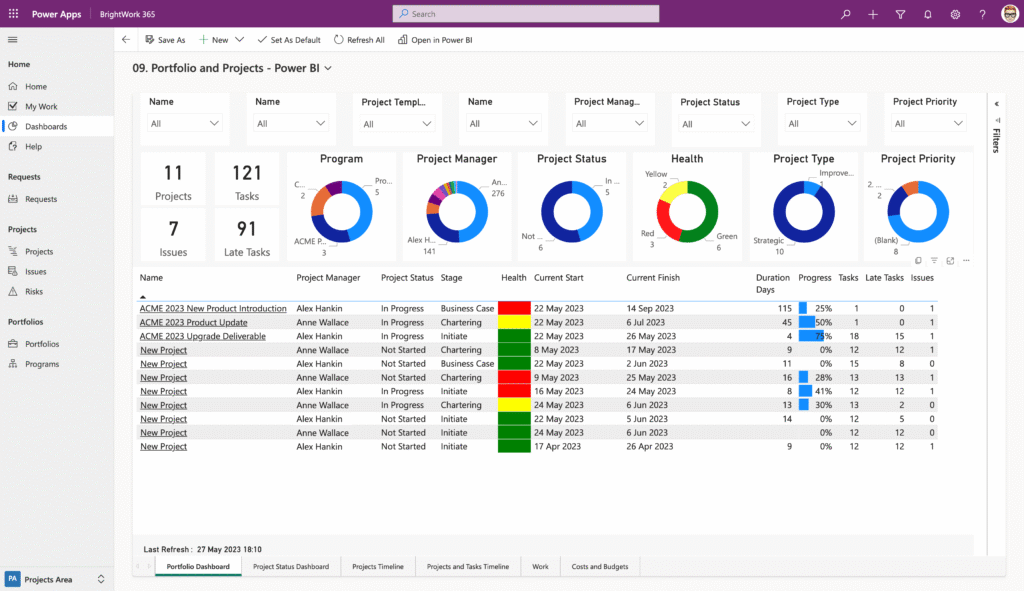
With the evolution of the Microsoft 365 platform, of course, there is still SharePoint, but there’s also Teams and other extensible features including Power Platform. In addition to SharePoint Online, Microsoft 365 includes additional features, apps, and improvements that can all be leveraged for their project management capabilities.
[/et_pb_text][et_pb_image src="https://bw.hosting.24.ie/wp-content/uploads/18-Portfolio-Reports-PowerBI-1.png" title_text="18 – Portfolio Reports PowerBI" admin_label="Image" _builder_version="4.25.1" _module_preset="default" custom_margin="25px||25px||false|false" box_shadow_style="preset1" locked="off" global_colors_info="{}"][/et_pb_image][et_pb_text _builder_version="4.25.1" _module_preset="default" global_colors_info="{}"]
With that in mind, you may wish to move beyond strictly using SharePoint to manage projects. Instead of building something in Microsoft 365 just on SharePoint Online, we looked at all of what’s in Microsoft 365 and used the best pieces to build a brand new project and portfolio management system called BrightWork 365.
If your organization is moving away SharePoint as a standalone project management tool, but would still like to manage your projects within the Microsoft ecosystem, then Microsoft 365 is a good place to start.
[/et_pb_text][/et_pb_column][/et_pb_row][/et_pb_section][et_pb_section fb_built=”1″ specialty=”on” _builder_version=”4.16″ _module_preset=”default” background_color=”#e8d1eb” border_radii=”on|20px|20px|20px|20px” locked=”off” collapsed=”on” global_colors_info=”{}”][et_pb_column type=”1_2″ specialty_columns=”2″ _builder_version=”4.16″ custom_padding=”|||” global_colors_info=”{}” custom_padding__hover=”|||”][et_pb_row_inner _builder_version=”4.16″ _module_preset=”default” custom_padding=”35px|||55px|false|false” global_colors_info=”{}”][et_pb_column_inner saved_specialty_column_type=”1_2″ _builder_version=”4.16″ _module_preset=”default” global_colors_info=”{}”][et_pb_text _builder_version=”4.16″ _module_preset=”default” header_font=”Montserrat||||||||” custom_padding=”||||false|false” global_colors_info=”{}”]
Manage projects with Microsoft 365 and SharePoint Online
Watch a demo of BrightWork 365 project and portfolio management templates for Microsoft 365, Power Platform, and Teams.
[/et_pb_text][et_pb_button button_url="https://bw.hosting.24.ie/brightwork-365/video-demo?oc=C-01719-C0Q1" button_text="Watch BrightWork 365 Demo" button_alignment="left" _builder_version="4.16" _module_preset="default" custom_button="on" button_text_color="#FFFFFF" button_bg_color="#fa4616" button_font="|600|||||||" custom_margin="10px||||false|false" custom_padding="8px|30px|8px|30px|false|false" locked="off" global_colors_info="{}"][/et_pb_button][/et_pb_column_inner][/et_pb_row_inner][/et_pb_column][et_pb_column type="1_2" _builder_version="4.16" custom_padding="|||" global_colors_info="{}" custom_padding__hover="|||"][et_pb_image src="https://bw.hosting.24.ie/wp-content/uploads/Align-1.png" title_text="BrightWork 365" align="center" _builder_version="4.16" _module_preset="default" width="75%" max_height="250px" global_colors_info="{}"][/et_pb_image][/et_pb_column][/et_pb_section]