

What is a Project Status Report?
A project status report summarizes the current status of the project, including health, schedule, and risks against expected performance. The report is often displayed in a SharePoint project dashboard to provide a visual overview.
The frequency of the status report is often based on the duration of a task, typically one week.
Importance of Regular Status Reports in Project Management
The report is a useful communication tool, especially for team members or stakeholders who are not working on the project regularly.
The report also provides more context about completed and upcoming work.
A typical Project Status Report includes red-amber-green indicators (RAG) for health, cost, and time, along with information and comments you feel are important.
The metrics included in the report are often decided during the project planning phase.
Key Components of a Status Report
A status report typically covers:
-
Complete and upcoming work
-
Overall progress, including budget updates if required
-
SharePoint status indicators (RAG) for project health, time, and costs
-
Action items, risks, and issues affecting the project
SharePoint Project Status Dashboard Template
In the free SharePoint project management template, there is a section in the Quick Launch called Status Reports where all of the status report records are housed. This area can be customized to display key metrics, RAG report template formats, and status indicators.
Here is a brief video explaining the SharePoint project status dashboard:
To view this video, please allow Functional cookies.

Step-by-Step Video: How to Create a SharePoint Project Status Report
Reviewing the SharePoint team sites and updating the project status report dashboard ensures accurate tracking of project tasks, providing real-time visibility for stakeholders and team members.
To view this video, please allow Functional cookies.
1. Review and Update the SharePoint Dashboard for Project Management
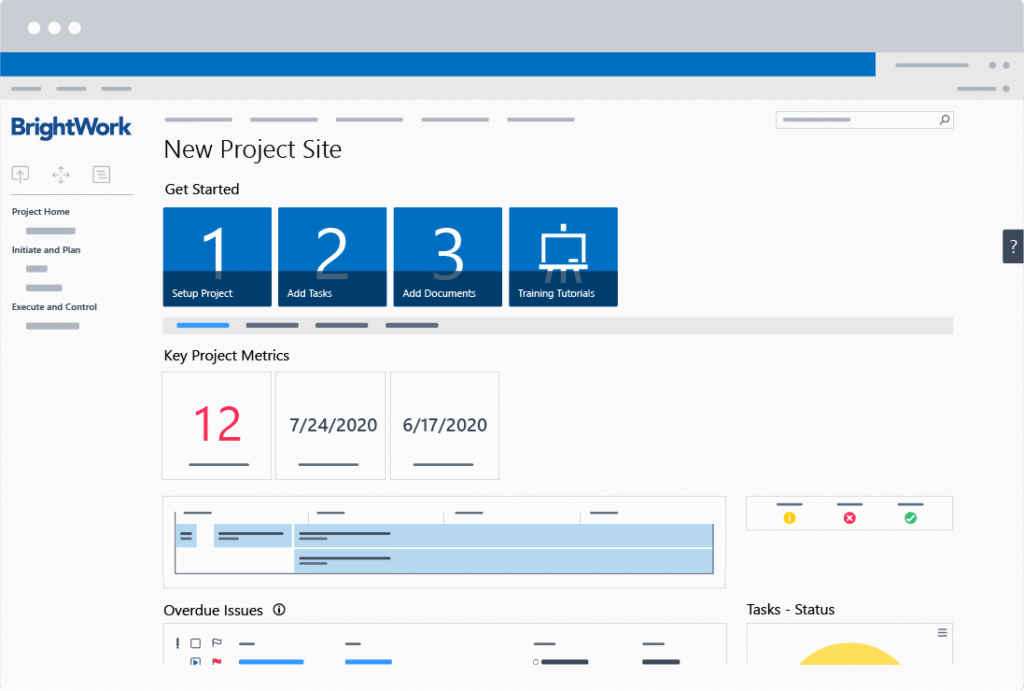
Before adding a new report, review the SharePoint site to check the status of work. This ensures that your SharePoint reporting dashboard is up to date.
With the free SharePoint Project Management template, the various dashboards on the project homepage are updated as your team works on their project tasks.
Use this information as the basis of the status report. Ask team members for more details as needed.
2. Find the Status Reports Section
When you’re ready, navigate to the ‘Status reports’ area in the Quick Launch menu (under ‘Execute and Control’). Here, you’ll find a list of previous status reports with RAG reporting, completion date, and comments.
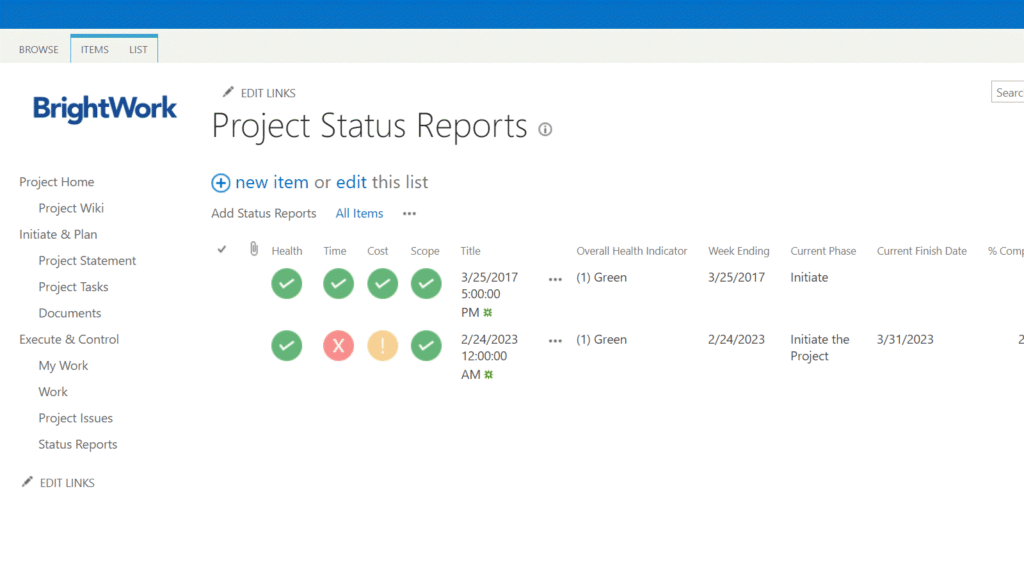
3. Add or Edit a Project Status Report
Simply add a new item or click “Edit this list” to add a new status report. You can also use a dashboard project status report template to streamline this process.
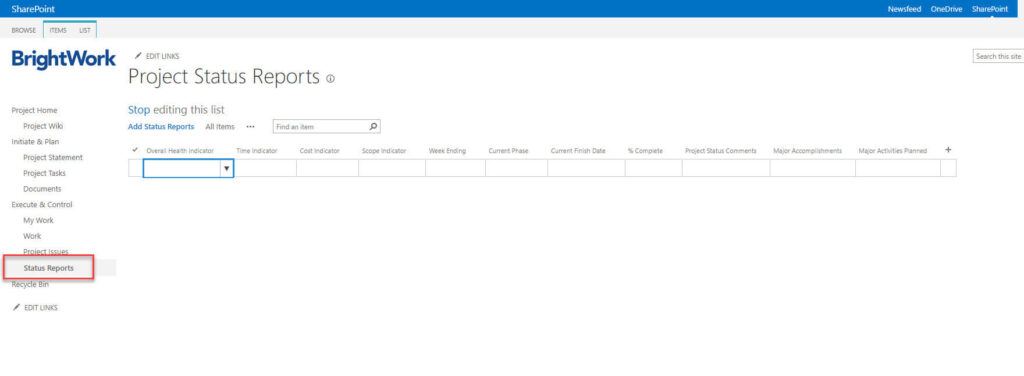
4. Update Key Project Metrics in the Datasheet View
Now you have a datasheet view to quickly update the status of the project and add some comments for the team. Work through each column:
-
Overall health, time, cost – color status
-
Date of report
-
Current project phase
-
Expected finish date
-
% complete
-
Status comment
-
How are you feeling about the project?
-
Why are things going wrong?
-
What do you have planned next?
-
Activities planned.
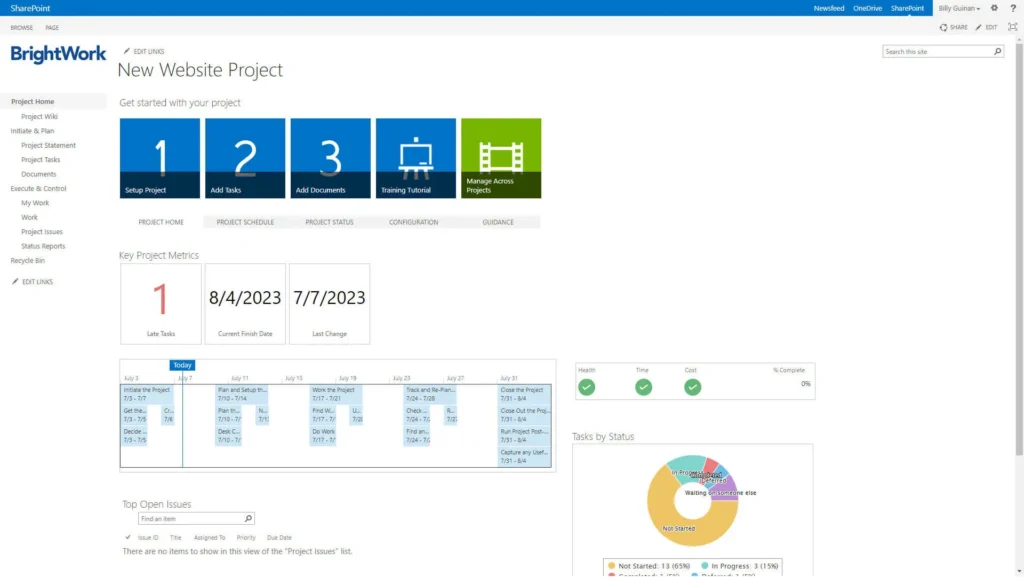
Save that information and you have a status report.
The homepage of the project site is also updated with the latest indicators for the entire team to see.
5. Save the Report and Update the Status Report Dashboard
Save that information and you have a status report. The homepage of the project site is also updated with the latest indicators for the entire project team to see.
Using the dashboard in SharePoint, stakeholders can view real-time project status updates.
In BrightWork, project status reports logged in individual SharePoint project sites automatically roll up to portfolio-level dashboards.
This creates instant visibility for project stakeholders and senior management at a high level.