

Blog > A Quick Guide to SharePoint Project Tracking

A Quick Guide to SharePoint Project Tracking

December 30, 2024 15 min read
project management standardization

[et_pb_section fb_built=”1″ _builder_version=”4.16″ _module_preset=”default” custom_margin=”-60px||||false|false” custom_margin_tablet=”” custom_margin_phone=”-20px||||false|false” custom_margin_last_edited=”on|phone” collapsed=”off” global_colors_info=”{}”][et_pb_row _builder_version=”4.16″ _module_preset=”default” global_colors_info=”{}”][et_pb_column type=”4_4″ _builder_version=”4.16″ _module_preset=”default” global_colors_info=”{}”][et_pb_text _builder_version=”4.25.1″ _module_preset=”default” hover_enabled=”0″ global_colors_info=”{}” sticky_enabled=”0″]

What is Project Tracking?

If you are working on or managing a project, you’ll need to know how the project is progressing at all times.

Project tracking is a process used to track the status of a project to identify what has been done, what is still left to do, and if any issues are affecting the health, budget, or schedule.

SharePoint for Project Management

The best way to track projects is by using collaborative project management software with your project team. Both SharePoint Server and SharePoint Online (part of Microsoft 365) offer valuable features for project tracking.

We’ll touch on how to use SharePoint on-premises (SharePoint Server 2013, 2016, and 2019) and highlight the tools available in Microsoft 365 to streamline tracking across the platform.

[/et_pb_text][/et_pb_column][/et_pb_row][/et_pb_section][et_pb_section fb_built=”1″ _builder_version=”4.16″ _module_preset=”default” custom_margin=”-40px||-30px||false|false” custom_margin_tablet=”-30px||-20px||false|false” custom_margin_phone=”-20px||-10px||false|false” custom_margin_last_edited=”on|phone” locked=”off” collapsed=”on” global_colors_info=”{}”][et_pb_row column_structure=”3_5,2_5″ custom_padding_last_edited=”on|phone” _builder_version=”4.16″ _module_preset=”default” background_color=”#e8d1eb” custom_padding=”45px|45px|45px|45px|true|true” custom_padding_tablet=”” custom_padding_phone=”30px|30px|30px|30px|true|true” border_radii=”on|15px|15px|15px|15px” global_colors_info=”{}”][et_pb_column type=”3_5″ _builder_version=”4.16″ _module_preset=”default” global_colors_info=”{}”][et_pb_text _builder_version=”4.16″ _module_preset=”default” custom_margin=”||||false|false” custom_padding=”15px||10px||false|false” custom_padding_tablet=”0px||0px||false|false” custom_padding_phone=”” custom_padding_last_edited=”on|phone” global_colors_info=”{}”]

Project management on Microsoft 365

Watch a demo of BrightWork 365 project and portfolio management templates for Microsoft 365, Power Platform, and Teams.

[/et_pb_text][et_pb_button button_url="https://bw.hosting.24.ie/brightwork-365/video-demo?oc=C-01719-C0Q1" button_text="BRIGHTWORK 365 DEMO" button_alignment="left" _builder_version="4.16" _module_preset="default" custom_button="on" button_text_color="#FFFFFF" button_bg_color="#fa4616" button_border_width="2px" button_border_color="#fa4616" button_font="|600|||||||" button_use_icon="off" custom_margin="-5px||4px||false|false" custom_padding="10px|25px|10px|25px|false|false" locked="off" global_colors_info="{}" button_bg_color__hover_enabled="on|desktop" button_bg_color__hover="#FFFFFF" button_bg_enable_color__hover="on" button_text_color__hover_enabled="on|hover" button_text_color__hover="#fa4616" button_border_color__hover_enabled="on|hover" button_border_color__hover="#fa4616"][/et_pb_button][/et_pb_column][et_pb_column type="2_5" _builder_version="4.16" _module_preset="default" global_colors_info="{}"][et_pb_image src="https://bw.hosting.24.ie/wp-content/uploads/BrightWork-365-4.webp" title_text="BrightWork 365" _builder_version="4.16" _module_preset="default" border_radii="on|10px|10px|10px|10px" global_colors_info="{}"][/et_pb_image][/et_pb_column][/et_pb_row][/et_pb_section][et_pb_section fb_built="1" _builder_version="4.16" _module_preset="default" collapsed="on" global_colors_info="{}"][et_pb_row _builder_version="4.16" _module_preset="default" global_colors_info="{}"][et_pb_column type="4_4" _builder_version="4.16" _module_preset="default" global_colors_info="{}"][et_pb_text _builder_version="4.25.1" _module_preset="default" global_colors_info="{}"]

What are the Basics of Project Tracking?

Mark Twain once said, “The secret to getting ahead is getting started.” We believe this to be true when it comes to project tracking!

Many project teams are not quite ready for fully structured project management processes, so that would not be a good place to start. For smaller projects, a high level of the process may not even be necessary.

Starting with High-Level Details

At BrightWork, we like to think of project management as being a spectrum. Some projects can range from highly structured to ultra-light approaches.

So why not start out tracking just the high-level details of a project? At least then, you’ll have a record to refer to and show senior management.

If you’re just starting with collaborative project management using a software tool, you can start by tracking the essentials. These might include:

  • Project name
  • Project manager
  • Project type
  • Customer or department involved
  • Required finish date from the customer
  • The likely finish date based on the current progress
  • Overall project health
  • Current project status (e.g., on track or facing challenges)


Benefits of Tracking Essentials

Tracking even the most basic details helps you manage projects more effectively. If you track and report these items to the project stakeholders— such as the team members, senior management, and the customer— it encourages valuable feedback to improve project outcomes.

[/et_pb_text][/et_pb_column][/et_pb_row][/et_pb_section][et_pb_section fb_built=”1″ _builder_version=”4.16″ _module_preset=”default” collapsed=”on” global_colors_info=”{}”][et_pb_row _builder_version=”4.16″ _module_preset=”default” global_colors_info=”{}”][et_pb_column type=”4_4″ _builder_version=”4.16″ _module_preset=”default” global_colors_info=”{}”][et_pb_text _builder_version=”4.25.1″ _module_preset=”default” global_colors_info=”{}”]

Project Tracker Template for SharePoint Server

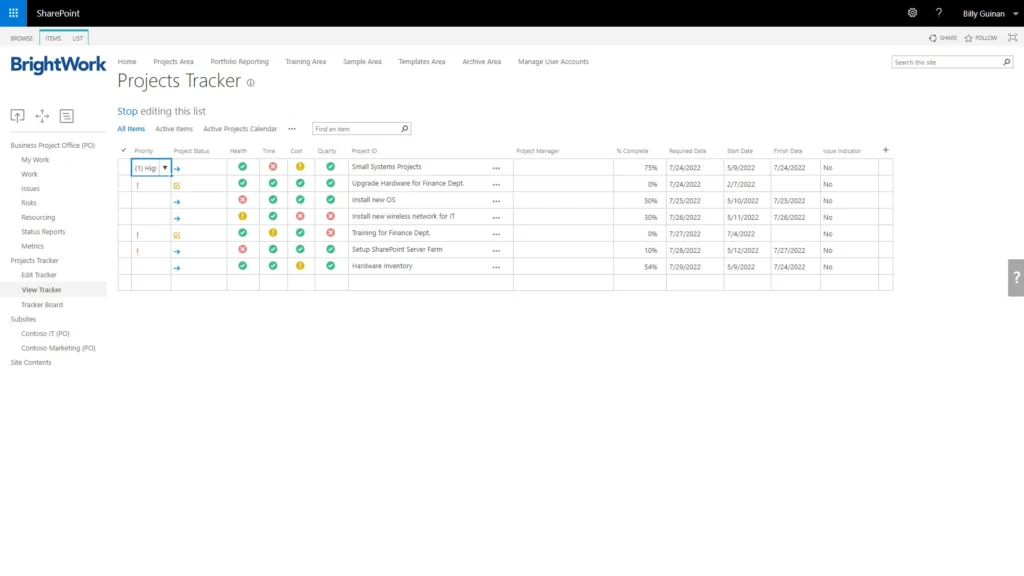
Looking at the list of project tracking essentials above, you can see how a simple spreadsheet could be used to keep track of the data. Keeping the project info in a spreadsheet has many disadvantages. So why not move your project tracker to SharePoint?
[/et_pb_text][et_pb_image src="https://bw.hosting.24.ie/wp-content/uploads/2024/03/sharepoint-project-tracker-edit.webp" title_text="sharepoint project tracker edit" _builder_version="4.25.1" _module_preset="default" custom_margin="35px||35px||false|false" box_shadow_style="preset1" global_colors_info="{}"][/et_pb_image][et_pb_text _builder_version="4.25.1" _module_preset="default" global_colors_info="{}"]

Benefits of Using SharePoint for Project Tracking

A project tracker in SharePoint mimics the ease of Microsoft Excel but adds valuable features. It allows you to track project essentials in a grid similar to Excel, with added benefits:

  • A single source of project truth
  • It also has a version history and an audit trail to see who made what changes to the project status and when.
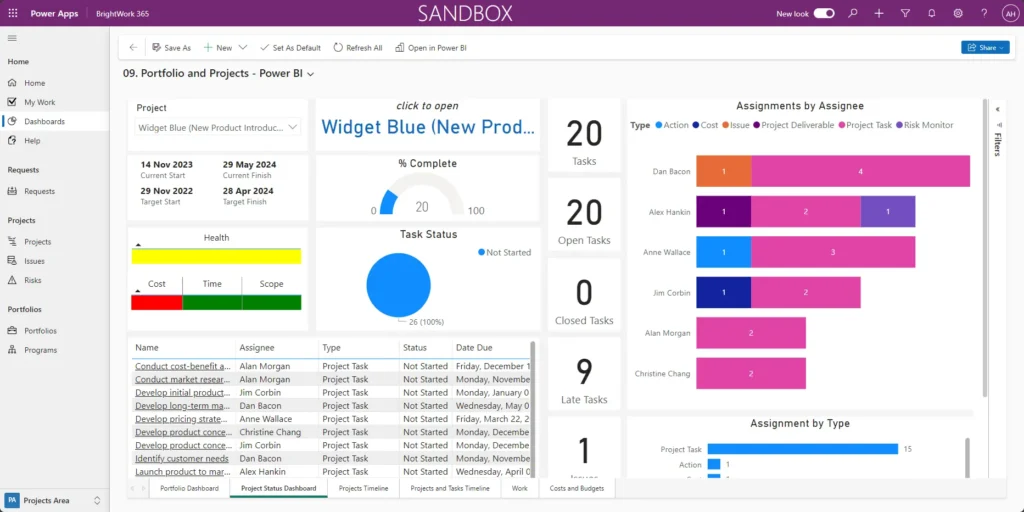
  • The ability to transform data into a project dashboard


[/et_pb_text][et_pb_image src="https://bw.hosting.24.ie/wp-content/uploads/2024/03/sharepoint-project-tracker-edit.webp" title_text="sharepoint project tracker edit" _builder_version="4.25.1" _module_preset="default" custom_margin="35px||35px||false|false" box_shadow_style="preset1" global_colors_info="{}"][/et_pb_image][et_pb_text _builder_version="4.25.1" _module_preset="default" global_colors_info="{}"]

This SharePoint tracker eliminates common challenges found in Excel, such as version confusion and data integrity issues. Plus, the dashboard view is visually appealing and intuitive.

You can see multiple projects in one place, click for more details and access version history. Using SharePoint provides a simple, organized approach with no unnecessary complexity.

[/et_pb_text][/et_pb_column][/et_pb_row][/et_pb_section][et_pb_section fb_built=”1″ _builder_version=”4.16″ _module_preset=”default” custom_margin=”-40px||-30px||false|false” custom_margin_tablet=”-30px||-20px||false|false” custom_margin_phone=”-20px||-10px||false|false” custom_margin_last_edited=”on|phone” locked=”off” collapsed=”on” global_colors_info=”{}”][et_pb_row column_structure=”1_2,1_2″ custom_padding_last_edited=”on|phone” _builder_version=”4.16″ _module_preset=”default” background_color=”#d2e9ff” custom_padding=”45px|45px|45px|45px|true|true” custom_padding_tablet=”” custom_padding_phone=”30px|30px|30px|30px|true|true” border_radii=”on|15px|15px|15px|15px” global_colors_info=”{}”][et_pb_column type=”1_2″ _builder_version=”4.16″ _module_preset=”default” global_colors_info=”{}”][et_pb_text _builder_version=”4.16″ _module_preset=”default” custom_margin=”||||false|false” custom_padding=”15px||10px||false|false” custom_padding_tablet=”0px||0px||false|false” custom_padding_phone=”” custom_padding_last_edited=”on|phone” global_colors_info=”{}”]

Get a Free SharePoint Project Management Template

Download your SharePoint template that is pre-designed to manage a project.

[/et_pb_text][et_pb_button button_url="https://bw.hosting.24.ie/product/free-sharepoint-project-management-templates?oc=C-01252-H9V0" button_text="GET FREE TEMPLATE" button_alignment="left" _builder_version="4.16" _module_preset="default" custom_button="on" button_text_color="#FFFFFF" button_bg_color="#28ce96" button_border_width="2px" button_border_color="#28ce96" button_font="|600|||||||" button_use_icon="off" custom_margin="-5px||4px||false|false" custom_padding="10px|25px|10px|25px|false|false" locked="off" global_colors_info="{}" button_bg_color__hover_enabled="on|desktop" button_bg_color__hover="#FFFFFF" button_bg_enable_color__hover="on" button_text_color__hover_enabled="on|hover" button_text_color__hover="#28ce96" button_border_color__hover_enabled="on|hover" button_border_color__hover="#28ce96"][/et_pb_button][/et_pb_column][et_pb_column type="1_2" _builder_version="4.16" _module_preset="default" global_colors_info="{}"][et_pb_image src="https://bw.hosting.24.ie/wp-content/uploads/2024/03/BrightWork-SharePoint-6.png" title_text="BrightWork SharePoint" _builder_version="4.16" _module_preset="default" custom_padding="15px||||false|false" custom_padding_tablet="" custom_padding_phone="0px||10px||false|false" custom_padding_last_edited="on|desktop" border_radii="on|10px|10px|10px|10px" box_shadow_style="preset1" box_shadow_color="#78bcff" global_colors_info="{}"][/et_pb_image][/et_pb_column][/et_pb_row][/et_pb_section][et_pb_section fb_built="1" _builder_version="4.16" _module_preset="default" collapsed="off" global_colors_info="{}"][et_pb_row _builder_version="4.16" _module_preset="default" global_colors_info="{}"][et_pb_column type="4_4" _builder_version="4.16" _module_preset="default" global_colors_info="{}"][et_pb_text _builder_version="4.25.1" _module_preset="default" global_colors_info="{}"]

Collaborative Project Tracking in Microsoft 365

SharePoint Server offers benefits for project tracking, but many organizations now prefer the cloud-based Microsoft 365 platform. Microsoft 365 and SharePoint Online provide several tools for project management, including:

  • Microsoft Lists
  • Microsoft Planner
  • Microsoft Teams integration.


While these apps differ significantly from the Projects Tracker in BrightWork for SharePoint Server, these management tools provide all the essential project tracking information noted above.

[/et_pb_text][et_pb_text _builder_version=”4.25.1″ _module_preset=”default” global_colors_info=”{}”]

Microsoft Lists

Microsoft Lists evolved out of SharePoint Lists a few years ago. It is an app within Microsoft 365 that simplifies information tracking and work organization.

You can use Microsoft Lists to create a project tracker and issues tracker list to help manage and track project details with your team.

Your Microsoft Lists are easily added to your project management site in SharePoint Online and can be built from scratch or based on pre-built templates.

[/et_pb_text][et_pb_text _builder_version=”4.25.1″ _module_preset=”default” global_colors_info=”{}”]

Microsoft Planner

Microsoft Planner simplifies task management with an intuitive, visual approach using a Kanban board.

Users can organize project tasks into customizable buckets or columns to help teams see the work status at a glance.

Team members can comment on project task lists, attach files, and discuss details directly within Planner, enhancing communication. Plans can also be added to SharePoint pages.

[/et_pb_text][et_pb_text _builder_version=”4.25.1″ _module_preset=”default” global_colors_info=”{}”]

Integration with Microsoft Teams

Microsoft Teams is a great way to enhance collaboration.

Create a dedicated Teams channel for each project and link it to the corresponding project site in Microsoft 365.

This keeps all collaboration and communication within the Teams app if that’s where your team likes to work.

[/et_pb_text][/et_pb_column][/et_pb_row][/et_pb_section][et_pb_section fb_built=”1″ _builder_version=”4.16″ _module_preset=”default” collapsed=”off” global_colors_info=”{}”][et_pb_row _builder_version=”4.16″ _module_preset=”default” global_colors_info=”{}”][et_pb_column type=”4_4″ _builder_version=”4.16″ _module_preset=”default” global_colors_info=”{}”][et_pb_text _builder_version=”4.25.1″ _module_preset=”default” global_colors_info=”{}”]

How Does BrightWork 365 Improve Project Tracking?

BrightWork 365 is a project and portfolio management solution for Microsoft 365 and Microsoft Power Platform, including SharePoint Online.

[/et_pb_text][et_pb_image src="https://bw.hosting.24.ie/wp-content/uploads/BrightWork-365-14-scaled.webp" title_text="BrightWork 365" _builder_version="4.16" _module_preset="default" custom_margin="35px||35px||false|false" box_shadow_style="preset1" global_colors_info="{}"][/et_pb_image][et_pb_text admin_label="Text" _builder_version="4.25.1" _module_preset="default" global_colors_info="{}"]

It provides templates for various project types, including project management, portfolio management, and day-to-day work management. These templates cater to different levels of project complexity, ranging from light to structured, based on their Start-Evolve Approach.
[/et_pb_text][et_pb_image src="https://bw.hosting.24.ie/wp-content/uploads/0-scaled.webp" title_text="BrightWork 365 | Template Spectrum" _builder_version="4.16" _module_preset="default" custom_margin="35px||35px||false|false" box_shadow_style="preset1" global_colors_info="{}"][/et_pb_image][et_pb_text _builder_version="4.25.1" _module_preset="default" global_colors_info="{}"]

Start Quick with BrightWork 365 or BrightWork for SharePoint Server

BrightWork 365 combines apps, reports, and collaborative features in Microsoft 365 to help project managers increase project success while providing senior executives with high-level visibility in one complete solution.

Our free Project Management Template for SharePoint Server 2013, 2016, or 2019 allows you to start quickly. This pre-configured template includes lists, web parts, and reports, integrating seamlessly with your existing SharePoint On-Premises infrastructure – no coding required.

[/et_pb_text][/et_pb_column][/et_pb_row][/et_pb_section][et_pb_section fb_built=”1″ _builder_version=”4.16″ _module_preset=”default” custom_margin=”-40px||0px||false|false” custom_margin_tablet=”-30px||-20px||false|false” custom_margin_phone=”-20px||-10px||false|false” custom_margin_last_edited=”on|phone” locked=”off” global_colors_info=”{}”][et_pb_row column_structure=”3_5,2_5″ custom_padding_last_edited=”on|phone” _builder_version=”4.16″ _module_preset=”default” background_color=”#e8d1eb” custom_padding=”45px|45px|45px|45px|true|true” custom_padding_tablet=”” custom_padding_phone=”30px|30px|30px|30px|true|true” border_radii=”on|15px|15px|15px|15px” global_colors_info=”{}”][et_pb_column type=”3_5″ _builder_version=”4.16″ _module_preset=”default” global_colors_info=”{}”][et_pb_text _builder_version=”4.16″ _module_preset=”default” custom_margin=”||||false|false” custom_padding=”15px||10px||false|false” custom_padding_tablet=”0px||0px||false|false” custom_padding_phone=”” custom_padding_last_edited=”on|phone” global_colors_info=”{}”]

Project management on Microsoft 365

Watch a demo of BrightWork 365 project and portfolio management templates for Microsoft 365, Power Platform, and Teams.

[/et_pb_text][et_pb_button button_url="https://bw.hosting.24.ie/brightwork-365/video-demo?oc=C-01719-C0Q1" button_text="BRIGHTWORK 365 DEMO" button_alignment="left" _builder_version="4.16" _module_preset="default" custom_button="on" button_text_color="#FFFFFF" button_bg_color="#fa4616" button_border_width="2px" button_border_color="#fa4616" button_font="|600|||||||" button_use_icon="off" custom_margin="-5px||4px||false|false" custom_padding="10px|25px|10px|25px|false|false" locked="off" global_colors_info="{}" button_bg_color__hover_enabled="on|desktop" button_bg_color__hover="#FFFFFF" button_bg_enable_color__hover="on" button_text_color__hover_enabled="on|hover" button_text_color__hover="#fa4616" button_border_color__hover_enabled="on|hover" button_border_color__hover="#fa4616"][/et_pb_button][/et_pb_column][et_pb_column type="2_5" _builder_version="4.16" _module_preset="default" global_colors_info="{}"][et_pb_image src="https://bw.hosting.24.ie/wp-content/uploads/BrightWork-365-4.webp" title_text="BrightWork 365" _builder_version="4.16" _module_preset="default" border_radii="on|10px|10px|10px|10px" global_colors_info="{}"][/et_pb_image][/et_pb_column][/et_pb_row][/et_pb_section]

Categories
Billy Guinan​​
BrightWork Demand Generation Manager

Working with a range of B2B SaaS project portfolio management software for nearly 15 years, Billy specializes in best practices and methods of how to leverage Microsoft 365, Teams, Power Platform, and SharePoint to make project management easier. His focus areas are Collaborative Project Management and Template-Driven Project Management on the Microsoft platform. Beyond all things BrightWork, Billy enjoys reading, trying to golf, and walking his pug named Nova.

Ready to Centralize Your PMO? See BrightWork 365 in action