

[et_pb_section fb_built=”1″ _builder_version=”4.4.1″][et_pb_row admin_label=”Intro” _builder_version=”4.4.1″][et_pb_column type=”4_4″ _builder_version=”4.4.1″][et_pb_text admin_label=”Intro” _builder_version=”4.4.1″]
If your organization uses SharePoint On-Premises, you can use this pre-existing infrastructure as a practical, cost-effective approach to project and portfolio management.
By leveraging SharePoint, users get a fast start in a familiar environment and your IT team has one less new tool to manage.
Plus, SharePoint works alongside Microsoft 365 applications such as Teams, Project Professional, Power BI, Excel, and Outlook.
Consolidating project information and collaboration in one secure, easy-to-use tool location will accelerate and improve project delivery.
This article outlines how BrightWork, a PPM solution for SharePoint On-Premises, enhances SharePoint and leverages popular Microsoft 365 applications.
[/et_pb_text][/et_pb_column][/et_pb_row][et_pb_row column_structure=”3_5,2_5″ admin_label=”TOC” _builder_version=”4.4.1″ custom_margin=”25px||25px||false|false”][et_pb_column type=”3_5″ _builder_version=”4.4.1″][et_pb_text admin_label=”TOC” _builder_version=”4.4.1″ background_color=”#f5f8fa” custom_padding=”5px|||15px|false|false”]
Contents
BrightWork and SharePoint
BrightWork and Power BI
BrightWork and Microsoft Teams
BrightWork and Microsoft Project Professional
BrightWork and Document Management
BrightWork and Microsoft 365 Apps
[/et_pb_text][/et_pb_column][et_pb_column type=”2_5″ _builder_version=”4.4.1″][/et_pb_column][/et_pb_row][et_pb_row _builder_version=”4.4.1″][et_pb_column type=”4_4″ _builder_version=”4.4.1″][et_pb_text admin_label=”BrightWork and SharePoint” module_id=”sh” _builder_version=”4.4.1″ custom_margin=”30px||30px||false|false”]
BrightWork and SharePoint
BrightWork is a project and portfolio management solution that plugs right into your SharePoint On-Premises environment (server version of SharePoint 2019, 2016, or 2013) and can be installed within a couple of hours.
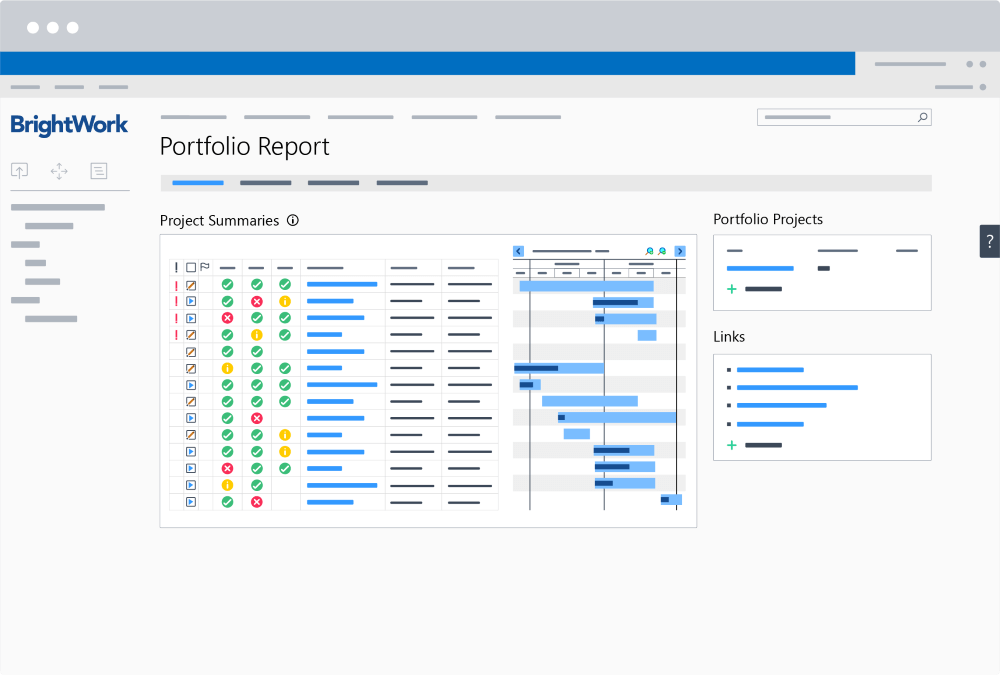
As BrightWork keeps the same consistent interface as the rest of your SharePoint environment, users don’t need to contend with another new interface.
Project teams can continue to use familiar functions such as document management and search alongside enhancements such as better navigation and Agile Boards.
Useful Resources:
- BrightWork and SharePoint On-Premises
- Getting The Best ROI From SharePoint For Your Projects – Part 1 [article]
- Getting The Best ROI From SharePoint For Your Projects – Part 2 [article]
- Common SharePoint Project Management Challenges Solved by BrightWork [article]
- BrightWork and SharePoint Permissions [article]
- Sharing and Managing your BrightWork Projects with External Systems [webinar recording]
[/et_pb_text][et_pb_text admin_label=”BrightWork and Power BI” module_id=”power” _builder_version=”4.9.4″ custom_margin=”30px||30px||false|false” hover_enabled=”0″ sticky_enabled=”0″]
BrightWork and Power BI
Microsoft Power BI is a collection of services, apps, and connectors used for reporting across numerous data sources, including SharePoint.
BrightWork includes a Power BI Reporting Pack with six dashboards:
- Portfolios:
- Portfolio Dashboards
- Portfolio Timeline
- Project and Task Timeline.
- Projects:
- Work Reports
- Status Report Dashboard
- Issue Report.

Useful Resources:
- BrightWork Power BI Pack and Consulting Services
- Enhancing SharePoint Cross-Project Reporting with Power BI Dashboards [webinar recording]
- Using Power BI with BrightWork Project Reports [article]
- 4 Ways to Share Power BI Reports and Dashboards [article]
[/et_pb_text][et_pb_text admin_label=”BrightWork and Microsoft Teams” module_id=”teams” _builder_version=”4.4.1″ custom_margin=”35px||30px||false|false”]
BrightWork and Microsoft Teams
Microsoft Teams is a collaboration platform with features such as instant chat, video meetings, and document management.
Teams is built on the Office 365 Groups (Groups) framework, bringing together various collaboration tools and options in one place.
Teams will replace Skype for Business by July 31st, 2021.
BrightWork does not integrate directly with Microsoft Teams. However, users can add a link to the BrightWork project site to the relevant channel in Teams.
This way, project teams can use BrightWork to find, do, and update work whilst collaborating with chat and video meetings in Teams.
Useful Resources:
- How to use Microsoft Teams for Project Management [article]
- Getting started with SharePoint plus Microsoft Teams [Microsoft – video]
- Which tool when for files: SharePoint, OneDrive, or Microsoft Teams? [jumpto365 – video]
- Microsoft Teams vs. Skype [Nextplane – article]
Videos:
How to Add a BrightWork Site to Microsoft Teams
How the BrightWork Marketing Team Uses BrightWork (and Teams)
[/et_pb_text][et_pb_text admin_label=”BrightWork and Microsoft Project Professional” module_id=”pro” _builder_version=”4.4.1″ custom_margin=”30px||35px||false|false”]
BrightWork and Microsoft Project Professional
Using the bi-directional sync between SharePoint and Microsoft Project Professional, project managers can update the project schedule in BrightWork and see the results in Project Server and vice versa.
The Project Structured Template in BrightWork provides an Enhanced Microsoft Project Schedule Sync.
This capability allows project managers to sync extra auto-calculated information into SharePoint such as baselines and variances for work, effort, and cost.
Useful Resources:
- For Project Management – BrightWork on SharePoint or Microsoft Project Server? [article]
- Project Reporting with Microsoft Project and SharePoint Sync in BrightWork [article]
[/et_pb_text][et_pb_text admin_label=”BrightWork and Documents ” module_id=”docs” _builder_version=”4.4.1″ custom_margin=”35px||30px||false|false”]
BrightWork and Document Management
BrightWork leverages native SharePoint capabilities for secure document management.
[/et_pb_text][et_pb_text admin_label=”BrightWork and Microsoft 365 Apps” module_id=”365″ _builder_version=”4.4.1″ custom_margin=”35px||30px||false|false”]
BrightWork and Microsoft 365 Apps
BrightWork also works easily with Outlook and Excel.
Outlook:
- Use BrightWork to Integrate Lists, Libraries, and Tasks with Outlook [article]
- How to get Emails into SharePoint 2010 and SharePoint 2013 [articles]
Excel:
- Building Dynamic Excel Reports Using BrightWork [webinar recording]
- Export to Excel from SharePoint [Microsoft – article]
- Export an external list to Excel [Microsoft – article]
- Get Data From SharePoint or OneDrive with Power Query [My Online Training Hub –video]
[/et_pb_text][/et_pb_column][/et_pb_row][/et_pb_section]