
Blog > Using Microsoft Power Automate for Project Management Automation

Using Microsoft Power Automate for Project Management Automation

May 19, 2025 21 min read

[et_pb_section fb_built=”1″ _builder_version=”4.16″ custom_margin=”-90px||||false|false” custom_margin_tablet=”” custom_margin_phone=”-70px||||false|false” custom_margin_last_edited=”on|phone” collapsed=”off” global_colors_info=”{}”][et_pb_row admin_label=”Intro” _builder_version=”4.16″ background_size=”initial” background_position=”top_left” background_repeat=”repeat” global_colors_info=”{}”][et_pb_column type=”4_4″ _builder_version=”4.16″ custom_padding=”|||” global_colors_info=”{}” custom_padding__hover=”|||”][et_pb_text _builder_version=”4.25.1″ background_size=”initial” background_position=”top_left” background_repeat=”repeat” custom_margin=”||20px||false|false” hover_enabled=”0″ global_colors_info=”{}” sticky_enabled=”0″]

Simplifying Project Management

Project management automation uses software to complete tasks with minimal human input and can transform project processes. Power Automate for project management is our top recommendation because it is built right into the Microsoft 365 platform.

Think about how much time you spend answering emails, finding information, and reminding your team about upcoming tasks! Now, imagine how your day would be if these tasks were running automatically in the background.

Sounds good? Keep reading to find out  how Microsoft Power Automate makes this possible for anyone.

[/et_pb_text][/et_pb_column][/et_pb_row][/et_pb_section][et_pb_section fb_built=”1″ _builder_version=”4.16″ _module_preset=”default” custom_margin=”-60px||-30px||false|false” custom_margin_tablet=”-50px||-20px||false|false” custom_margin_phone=”-40px||-10px||false|false” custom_margin_last_edited=”on|tablet” locked=”off” global_colors_info=”{}”][et_pb_row column_structure=”3_5,2_5″ custom_padding_last_edited=”on|phone” _builder_version=”4.16″ _module_preset=”default” background_color=”#e8d1eb” custom_padding=”45px|45px|45px|45px|true|true” custom_padding_tablet=”” custom_padding_phone=”30px|30px|30px|30px|true|true” border_radii=”on|15px|15px|15px|15px” global_colors_info=”{}”][et_pb_column type=”3_5″ _builder_version=”4.16″ _module_preset=”default” global_colors_info=”{}”][et_pb_text _builder_version=”4.16″ _module_preset=”default” custom_margin=”||||false|false” custom_padding=”15px||10px||false|false” custom_padding_tablet=”0px||0px||false|false” custom_padding_phone=”” custom_padding_last_edited=”on|phone” global_colors_info=”{}”]

Manage Project Approvals with Microsoft Power Automate

Streamline the new project pipleline with Microsoft Power Automate and BrightWork 365.

[/et_pb_text][et_pb_button button_url="https://bw.hosting.24.ie/brightwork-365/video-demo?oc=C-01719-C0Q1" button_text="BRIGHTWORK 365 DEMO" button_alignment="left" _builder_version="4.16" _module_preset="default" custom_button="on" button_text_color="#FFFFFF" button_bg_color="#fa4616" button_border_width="2px" button_border_color="#fa4616" button_font="|600|||||||" button_use_icon="off" custom_margin="-5px||4px||false|false" custom_padding="10px|25px|10px|25px|false|false" locked="off" global_colors_info="{}" button_bg_color__hover_enabled="on|desktop" button_bg_color__hover="#FFFFFF" button_bg_enable_color__hover="on" button_text_color__hover_enabled="on|hover" button_text_color__hover="#fa4616" button_border_color__hover_enabled="on|hover" button_border_color__hover="#fa4616"][/et_pb_button][/et_pb_column][et_pb_column type="2_5" _builder_version="4.16" _module_preset="default" global_colors_info="{}"][et_pb_image src="https://bw.hosting.24.ie/wp-content/uploads/BrightWork-365-4.webp" title_text="BrightWork 365" _builder_version="4.16" _module_preset="default" border_radii="on|10px|10px|10px|10px" global_colors_info="{}"][/et_pb_image][/et_pb_column][/et_pb_row][/et_pb_section][et_pb_section fb_built="1" module_id="what" _builder_version="4.16" collapsed="off" global_colors_info="{}"][et_pb_row _builder_version="4.16" background_size="initial" background_position="top_left" background_repeat="repeat" global_colors_info="{}"][et_pb_column type="4_4" _builder_version="4.16" custom_padding="|||" global_colors_info="{}" custom_padding__hover="|||"][et_pb_text admin_label="What is PM Automation" module_id="why" _builder_version="4.25.1" background_size="initial" background_position="top_left" background_repeat="repeat" custom_margin="20px||35px||false|false" hover_enabled="0" global_colors_info="{}" sticky_enabled="0"]

What is Project Management Automation?

Project management automation refers to the use of software tools and technologies to streamline project management processes, reduce manual work, and improve overall efficiency.

This involves automating routine tasks such as scheduling, task assignment and notifications, resource allocation, and communication, among others.

Tools that Support Project Management Automation

Automated project management can be achieved using various software tools and platforms, including project planning, budgeting, task management, time tracking, reporting, and risk management.

These tools can help project managers manage projects more effectively, reduce the risk of errors and delays, and improve overall project outcomes.

Using a Project Management Software

Project management software provides a centralized place to manage all aspects of a project. It keeps information organized, accessible, and easy to update, making collaboration easier for everyone involved.

It also involves the use of other technologies such as workflow automation. It streamlines routine processes, such as approvals and notifications. This frees up more time for teams to focus on strategic work and project success.

[/et_pb_text][/et_pb_column][/et_pb_row][/et_pb_section][et_pb_section fb_built=”1″ module_id=”why” _builder_version=”4.16″ custom_margin=”-50px||||false|false” collapsed=”off” global_colors_info=”{}”][et_pb_row _builder_version=”4.16″ background_size=”initial” background_position=”top_left” background_repeat=”repeat” global_colors_info=”{}”][et_pb_column type=”4_4″ _builder_version=”4.16″ custom_padding=”|||” global_colors_info=”{}” custom_padding__hover=”|||”][et_pb_text admin_label=”Why PM Automation” module_id=”why” _builder_version=”4.25.1″ background_size=”initial” background_position=”top_left” background_repeat=”repeat” custom_margin=”20px||35px||false|false” hover_enabled=”0″ global_colors_info=”{}” sticky_enabled=”0″]

Benefits of Using Project Management Automation

Automating project management tasks helps teams work faster, more accurately, and with less effort. Here are some key benefits to expect:

Improved Efficiency

Automating approvals, task reminders, deadlines, vacation requests, and purchase orders helps move projects faster. It frees up time for more strategic activities and reduces the need for constant manual follow-ups.

Increased Accuracy

Automation is suited to well-documented processes. This reduces errors and rework, improves data accuracy, and leads to better project outcomes.

Better Collaboration

Automation tools facilitate communication and collaboration among team members, stakeholders, and project sponsors.

As teams work remotely, automating project processes will help you to track work and improve communication without adding more administrative work.

Real-Time Tracking

Automation can enable real-time tracking of project progress, milestones, and potential risks, giving you clearer visibility without extra effort.

Cost Savings

Automation can reduce costs associated with manual labor, such as data entry and administrative tasks, improving project profitability.

Improved Quality

Automated workflows help enforce quality control standards, such as ensuring that all necessary reviews and approvals are obtained before moving forward with a project.

Scalability

Automation tools can help manage larger and more complex projects. It allows project managers to handle more tasks without adding extra burden.

Integration

Automation is also ideal for teams using multiple tools to manage their work. With the right processes, you can pull information from different sources to create a single source of truth.

This way, your team can use the tools they prefer while you maintain visibility and control over progress.

[/et_pb_text][/et_pb_column][/et_pb_row][/et_pb_section][et_pb_section fb_built=”1″ module_id=”powerautomate” _builder_version=”4.16″ custom_margin=”-50px||||false|false” collapsed=”off” global_colors_info=”{}”][et_pb_row _builder_version=”4.16″ background_size=”initial” background_position=”top_left” background_repeat=”repeat” global_colors_info=”{}”][et_pb_column type=”4_4″ _builder_version=”4.16″ custom_padding=”|||” global_colors_info=”{}” custom_padding__hover=”|||”][et_pb_text admin_label=”What is Microsoft Power Automate?” _builder_version=”4.25.1″ background_size=”initial” background_position=”top_left” background_repeat=”repeat” custom_margin=”35px||35px||false|false” hover_enabled=”0″ global_colors_info=”{}” sticky_enabled=”0″]

What is Microsoft Power Automate?

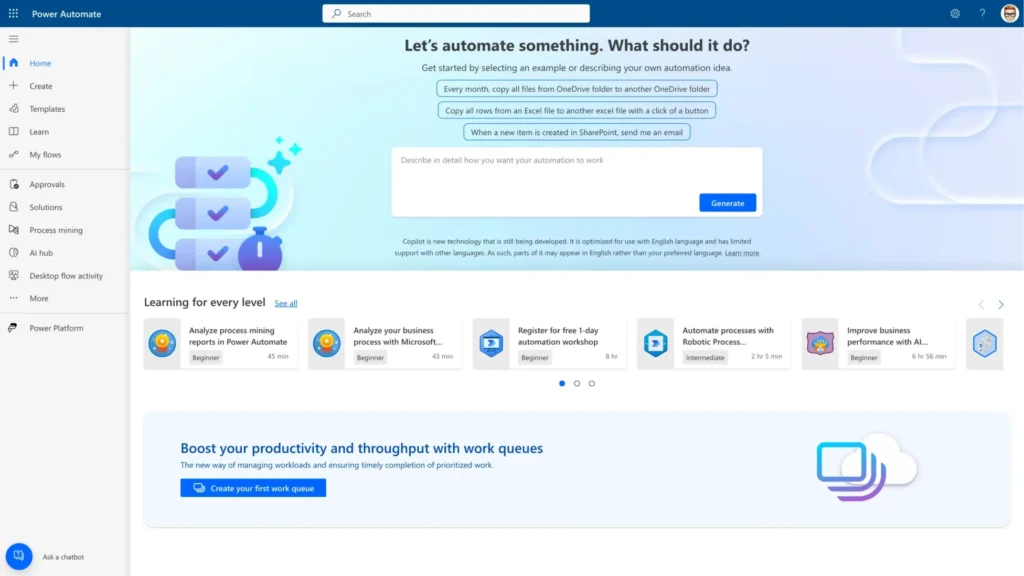
Microsoft Power Automate is a cloud-based service that enables users to create automated workflows between different applications and services. It enables users to connect a wide range of tools without having to use code.
[/et_pb_text][et_pb_image src="https://bw.hosting.24.ie/wp-content/uploads/2023/04/Power-Automate-Project-Management-Automation-Example.gif" alt="Power-Automate-Project-Management-Automation-Example" title_text="Power-Automate-Project-Management-Automation-Example" _builder_version="4.16" _module_preset="default" custom_margin="35px||35px||false|false" box_shadow_style="preset1" global_colors_info="{}"][/et_pb_image][et_pb_text admin_label="What is Microsoft Power Automate?" _builder_version="4.25.1" background_size="initial" background_position="top_left" background_repeat="repeat" custom_margin="35px||35px||false|false" hover_enabled="0" global_colors_info="{}" sticky_enabled="0"]

Automating Workflows Across Multiple Tools

Power Automate integrates with over 400 different applications and services, including Microsoft Office 365, SharePoint, Dynamics 365, Salesforce, and many others.

This makes it easy to connect and automate processes that are commonly used in business workflows.

Common Uses for Power Automate

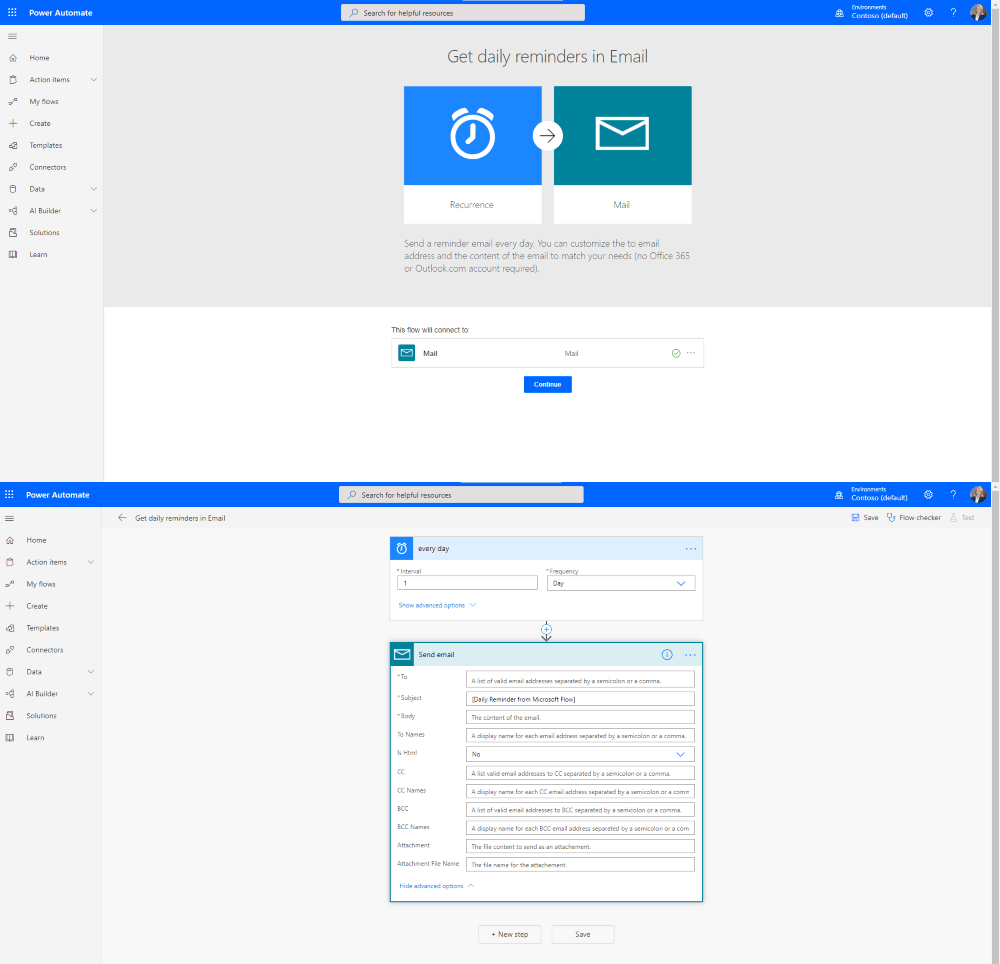
Using Power Automate, users can create workflows that automate tasks such as data collection and entry, approvals, email notifications, and data synchronization.

Workflows can be triggered by events, such as receiving an email or updating a record in a database. You can set different actions based on specific conditions.

Ready-to-Use Templates and Connectors

Power Automate has a simple, drag-and-drop interface to build workflows. It allows users to connect different applications and services easily.

The platform also provides templates and pre-built connectors for common tasks, making it easy to get started with automation.

[/et_pb_text][/et_pb_column][/et_pb_row][/et_pb_section][et_pb_section fb_built=”1″ _builder_version=”4.16″ custom_margin=”-50px||||false|false” collapsed=”off” global_colors_info=”{}”][et_pb_row module_id=”approvals” _builder_version=”4.16″ _module_preset=”default” global_colors_info=”{}”][et_pb_column type=”4_4″ _builder_version=”4.16″ _module_preset=”default” global_colors_info=”{}”][et_pb_text admin_label=”Heading” _builder_version=”4.25.1″ _module_preset=”default” hover_enabled=”0″ global_colors_info=”{}” sticky_enabled=”0″]

Microsoft Power Automate Project Management Automation Examples

There are many ways to use Microsoft Power Automate for project management. Here are a few examples:

[/et_pb_text][/et_pb_column][/et_pb_row][et_pb_row _builder_version=”4.16″ background_size=”initial” background_position=”top_left” background_repeat=”repeat” global_colors_info=”{}”][et_pb_column type=”4_4″ _builder_version=”4.16″ custom_padding=”|||” global_colors_info=”{}” custom_padding__hover=”|||”][et_pb_text admin_label=”Power Automate: Approvals” _builder_version=”4.25.1″ background_size=”initial” background_position=”top_left” background_repeat=”repeat” custom_margin=”30px||30px||false|false” hover_enabled=”0″ global_colors_info=”{}” sticky_enabled=”0″]

Approval Workflows

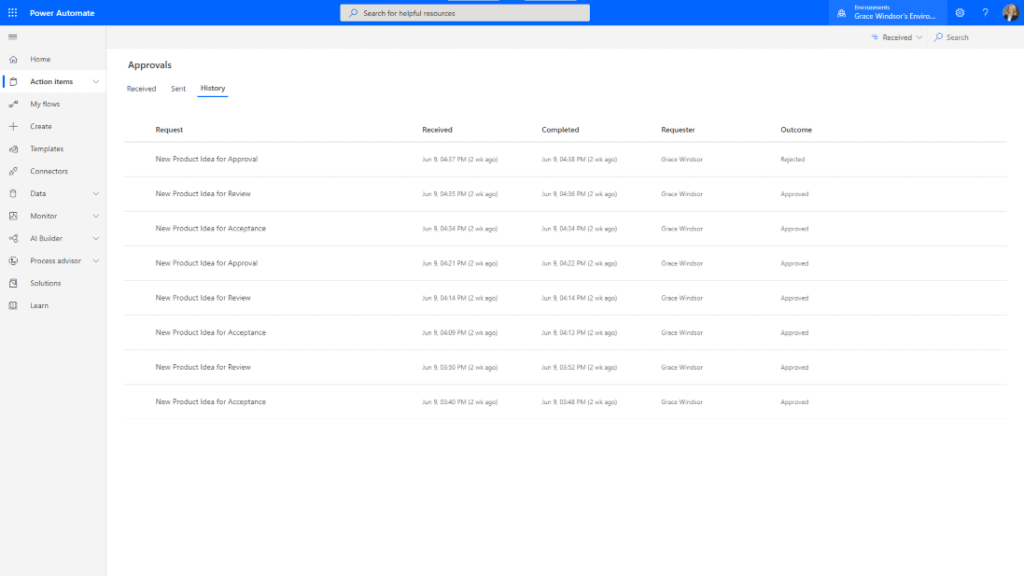
Use Power Automate to manage approvals for documents, forms, travel, vacation requests, and more. Projects often require approvals from stakeholders or other departments, such as finance, to keep work moving.

A manual approach is slow and inefficient. Automation combines human input with background workflows to speed up approvals and reduce delays.
[/et_pb_text][et_pb_image src="https://bw.hosting.24.ie/wp-content/uploads/2023/04/Power-Automate-Project-Management-Automation-Approvals.png" alt="Power-Automate-Project-Management-Automation-Approvals" title_text="Power-Automate-Project-Management-Automation-Approvals" _builder_version="4.16" _module_preset="default" custom_margin="45px||45px||false|false" box_shadow_style="preset1" global_colors_info="{}"][/et_pb_image][et_pb_text admin_label="Power Automate: Approvals" _builder_version="4.25.1" background_size="initial" background_position="top_left" background_repeat="repeat" custom_margin="30px||30px||false|false" hover_enabled="0" global_colors_info="{}" sticky_enabled="0"]

Types of Approval Flows Available

Power Automate supports five types of approvals and custom approvals:

  • Single – The approver can respond via email, Power Automate, or the mobile app.
  • Sequential – A pre-approval is required before the final approver can agree. For instance, a finance team may need to pre-approve a high-value purchase order.
  • Parallel – Multiple people must approve independently.
  • Everyone – All assigned approvers have to agree, but any approver can reject the request.
  • Add attachments to approval requests.


To deploy an approval flow, simply search for an approval template or create a custom flow.

Track everything through the ‘Action Items’ area, where you can view approvals you created or received, and the history of your approval flows.

[/et_pb_text][/et_pb_column][/et_pb_row][et_pb_row module_id=”documents” _builder_version=”4.16″ background_size=”initial” background_position=”top_left” background_repeat=”repeat” global_colors_info=”{}”][et_pb_column type=”4_4″ _builder_version=”4.16″ custom_padding=”|||” global_colors_info=”{}” custom_padding__hover=”|||”][et_pb_text admin_label=”Power Automate: Document Management” _builder_version=”4.25.1″ background_size=”initial” background_position=”top_left” background_repeat=”repeat” custom_margin=”35px||35px||false|false” hover_enabled=”0″ global_colors_info=”{}” sticky_enabled=”0″]

Document Management

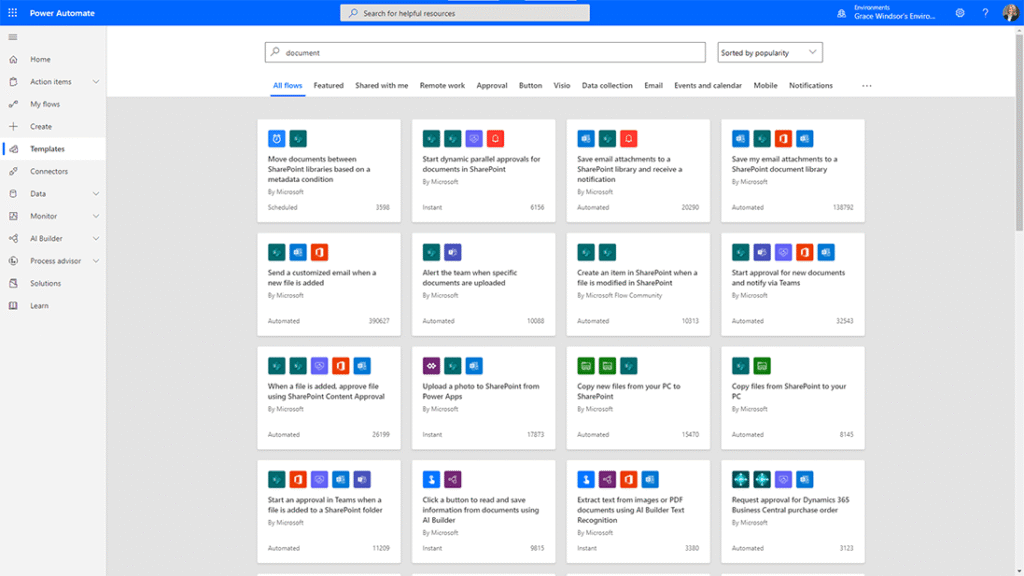
Power Automate helps you centralize project documentation and track the creation of new documents. A single location for files is essential for team collaboration, especially for remote teams. However, it’s easy for people to forget to use the document library!
[/et_pb_text][et_pb_image src="https://bw.hosting.24.ie/wp-content/uploads/2023/04/Power-Automate-Project-Management-Automation-Document-Templates.png" alt="Power-Automate-Project-Management-Automation-Document-Templates" title_text="Power-Automate-Project-Management-Automation-Document-Templates" _builder_version="4.16" _module_preset="default" custom_margin="45px||45px||false|false" box_shadow_style="preset1" global_colors_info="{}"][/et_pb_image][et_pb_text admin_label="Power Automate: Document Management" _builder_version="4.25.1" background_size="initial" background_position="top_left" background_repeat="repeat" custom_margin="35px||35px||false|false" hover_enabled="0" global_colors_info="{}" sticky_enabled="0"]

Automate File Storage and Updates

Using Power Automate templates, you can easily:

  • Move files shared via email attachment to OneDrive or SharePoint.
  • Move files between SharePoint libraries or OneDrive folders.
  • Copy new files from your computer to SharePoint.
  • Sync files from Google Drive or Dropbox.

This way, you’ll always know where to find the files. On large projects, it’s easy to lose track of new files or changes to existing files. Use templates to track the creation of new files automatically or to trigger an approval workflow for new items.

[/et_pb_text][/et_pb_column][/et_pb_row][et_pb_row module_id=”reporting” _builder_version=”4.16″ background_size=”initial” background_position=”top_left” background_repeat=”repeat” global_colors_info=”{}”][et_pb_column type=”4_4″ _builder_version=”4.16″ custom_padding=”|||” global_colors_info=”{}” custom_padding__hover=”|||”][et_pb_text admin_label=”Power Automate: Power BI” _builder_version=”4.25.1″ background_size=”initial” background_position=”top_left” background_repeat=”repeat” custom_margin=”35px||35px||false|false” hover_enabled=”0″ global_colors_info=”{}” sticky_enabled=”0″]

Power BI

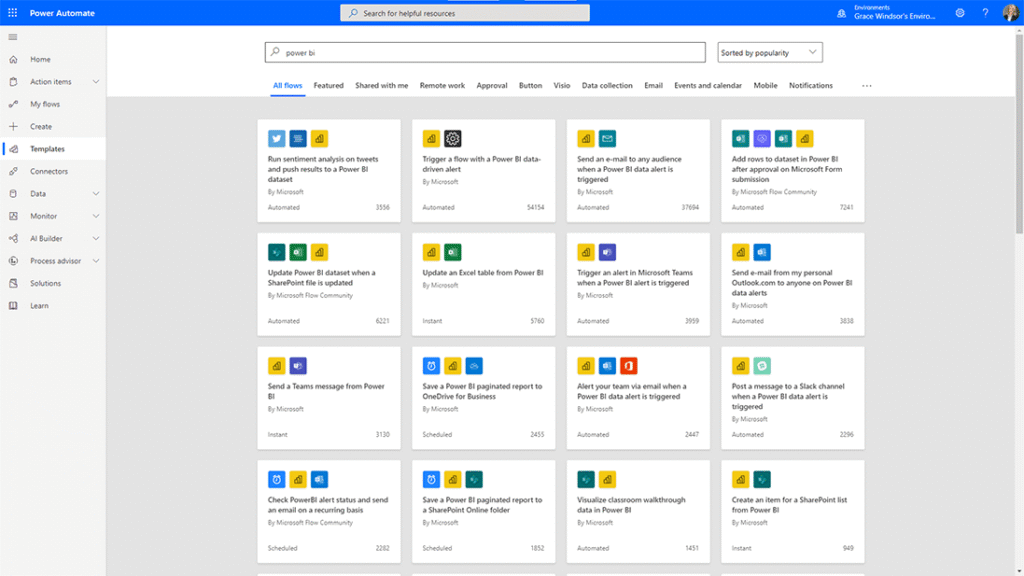
Power BI and Power Automate are part of the Microsoft Power Platform. Power BI is a business intelligence tool used to transform data from various sources into interactive reports and dashboards.

As covered previously, project managers can use Power BI to report on the timeline, ongoing tasks, project milestones, and late items.

It also generates powerful portfolio reports, giving senior executives real-time visibility into risks, resources, and timelines.
[/et_pb_text][et_pb_image src="https://bw.hosting.24.ie/wp-content/uploads/2023/04/Microsoft-Power-Automate-Project-Management-Automation-Power-BI.png" alt="Microsoft-Power-Automate-Project-Management-Automation-Power-BI" title_text="Microsoft-Power-Automate-Project-Management-Automation-Power-BI" _builder_version="4.16" _module_preset="default" custom_margin="45px||45px||false|false" box_shadow_style="preset1" global_colors_info="{}"][/et_pb_image][et_pb_text admin_label="Power Automate: Power BI" _builder_version="4.25.1" background_size="initial" background_position="top_left" background_repeat="repeat" custom_margin="35px||35px||false|false" hover_enabled="0" global_colors_info="{}" sticky_enabled="0"]

Automate Reporting Processes

Power Automate is often used to refresh the datasets behind Power BI reports and to send alerts if a data threshold is exceeded.

In terms of projects, you can combine Power Automate and Power BI to:

  • Update reports if a SharePoint file is updated.
  • Create and share reports via OneDrive or email.
  • Create a task from a Power BI report.


For more ideas and uses, see the Microsoft Power BI Community.

[/et_pb_text][/et_pb_column][/et_pb_row][et_pb_row module_id=”communication” _builder_version=”4.16″ background_size=”initial” background_position=”top_left” background_repeat=”repeat” global_colors_info=”{}”][et_pb_column type=”4_4″ _builder_version=”4.16″ custom_padding=”|||” global_colors_info=”{}” custom_padding__hover=”|||”][et_pb_text admin_label=”Power Automate: Teams” _builder_version=”4.25.1″ background_size=”initial” background_position=”top_left” background_repeat=”repeat” custom_margin=”35px||35px||false|false” hover_enabled=”0″ global_colors_info=”{}” sticky_enabled=”0″]

Microsoft Teams

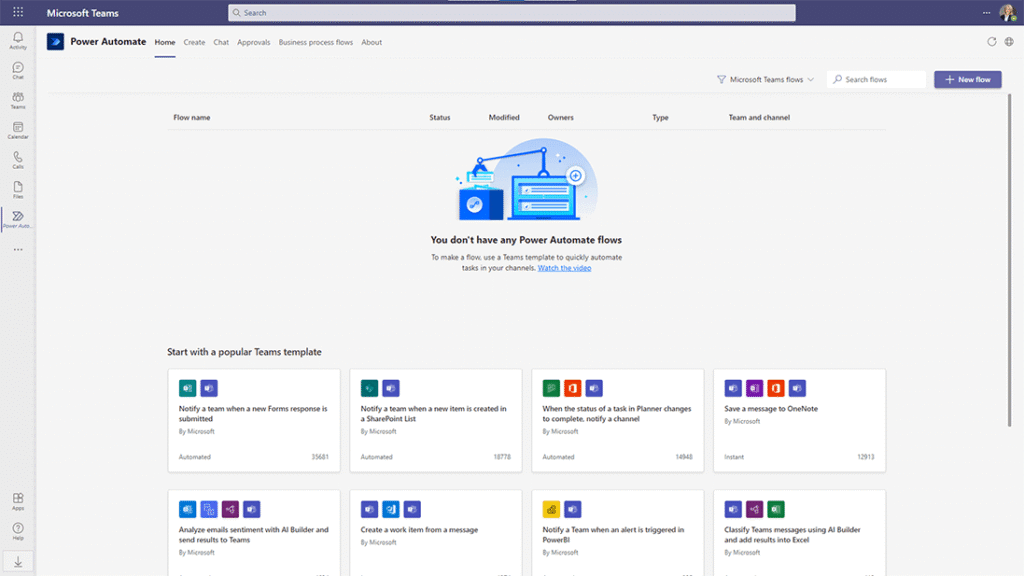
Microsoft Power Automate is available directly within Microsoft Teams. From here, you can create and manage your flows without needing to switch between multiple apps.
[/et_pb_text][et_pb_image src="https://bw.hosting.24.ie/wp-content/uploads/2023/04/Microsoft-Power-Automate-Project-Management-Automation-Microsoft-Teams.png" alt="Microsoft-Power-Automate-Project-Management-Automation-Microsoft-Teams" title_text="Microsoft-Power-Automate-Project-Management-Automation-Microsoft-Teams" _builder_version="4.16" _module_preset="default" custom_margin="45px||45px||false|false" box_shadow_style="preset1" global_colors_info="{}"][/et_pb_image][et_pb_text admin_label="Power Automate: Teams" _builder_version="4.25.1" background_size="initial" background_position="top_left" background_repeat="repeat" custom_margin="35px||35px||false|false" hover_enabled="0" global_colors_info="{}" sticky_enabled="0"]

Microsoft Power Automate also includes templates for Microsoft Teams, including:

  • Post a welcome message when a new team member joins the Team.
  • Schedule a meeting with a message sender.
  • Send a meeting reminder to Microsoft Teams during weekdays.


[/et_pb_text][/et_pb_column][/et_pb_row][et_pb_row module_id=”notifications” _builder_version=”4.16″ background_size=”initial” background_position=”top_left” background_repeat=”repeat” global_colors_info=”{}”][et_pb_column type=”4_4″ _builder_version=”4.16″ custom_padding=”|||” global_colors_info=”{}” custom_padding__hover=”|||”][et_pb_text admin_label=”Power Automate: Notifications” _builder_version=”4.25.1″ background_size=”initial” background_position=”top_left” background_repeat=”repeat” custom_margin=”35px||35px||false|false” hover_enabled=”0″ global_colors_info=”{}” sticky_enabled=”0″]

Notifications

Power Automate helps you manage project notifications, such as email reminders for upcoming deadlines or alerts when a new project is created.

For example, you could create a workflow that automatically:

  • Sends an email to team members when a task is overdue.
  • Assigns and alerts team members when they are added to a project plan.
  • Alerts the appropriate team member that a document is awaiting approval or has been approved.
  • Send a new project request for review and approval.


[/et_pb_text][/et_pb_column][/et_pb_row][et_pb_row module_id=”productivity” _builder_version=”4.16″ background_size=”initial” background_position=”top_left” background_repeat=”repeat” global_colors_info=”{}”][et_pb_column type=”4_4″ _builder_version=”4.16″ custom_padding=”|||” global_colors_info=”{}” custom_padding__hover=”|||”][et_pb_text admin_label=”Power Automate: Productivity” _builder_version=”4.25.1″ background_size=”initial” background_position=”top_left” background_repeat=”repeat” custom_margin=”35px||||false|false” hover_enabled=”0″ global_colors_info=”{}” sticky_enabled=”0″]

Productivity

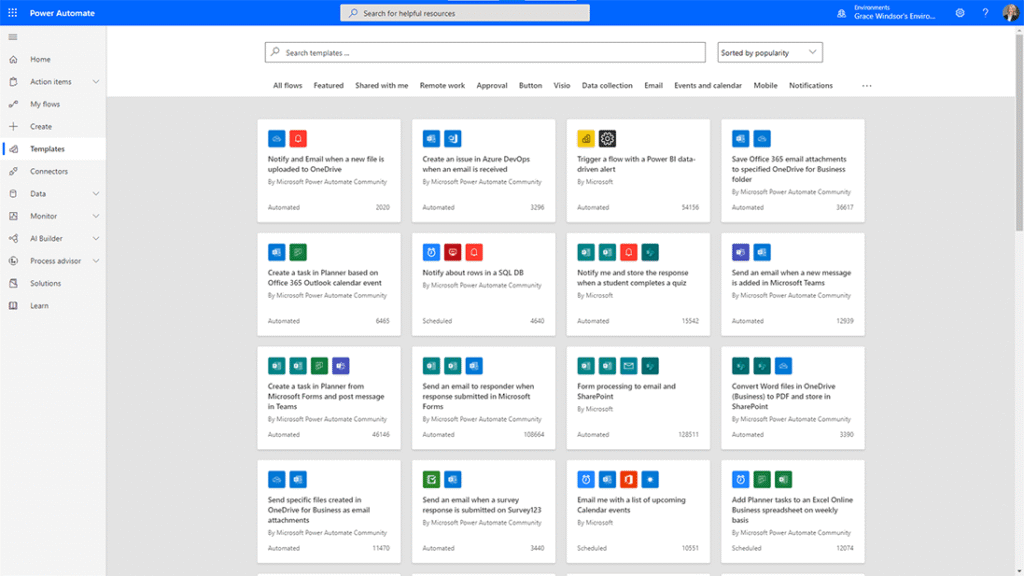
There are numerous ways to use Power Automate to reduce your daily ‘busywork’ and create more time to spend with your team.
[/et_pb_text][et_pb_image src="https://bw.hosting.24.ie/wp-content/uploads/2023/04/Microsoft-Power-Automate-Project-Management-Automation-Productivity-Templates.png" alt="Microsoft-Power-Automate-Project-Management-Automation-Productivity-Templates" title_text="Microsoft-Power-Automate-Project-Management-Automation-Productivity-Templates" _builder_version="4.16" _module_preset="default" custom_margin="45px||45px||false|false" box_shadow_style="preset1" global_colors_info="{}"][/et_pb_image][et_pb_text admin_label="Power Automate: Productivity" _builder_version="4.25.1" background_size="initial" background_position="top_left" background_repeat="repeat" custom_margin="35px||||false|false" hover_enabled="0" global_colors_info="{}" sticky_enabled="0"]

You’ll find templates under ‘Productivity’, ‘Notifications’, and ‘Events and Calendar’, including options to:

  • Keep track of project tasks in Microsoft Planner with daily emails and notifications.
  • Get a daily email of upcoming meetings.
  • Manage your calendar with automated time-blocking.
  • Create a OneNote page for the meeting to record notes and minutes.
  • Get a push notification when you receive an email from a manager.
  • Copy important emails to OneNote.


[/et_pb_text][/et_pb_column][/et_pb_row][/et_pb_section][et_pb_section fb_built=”1″ _builder_version=”4.16″ _module_preset=”default” global_colors_info=”{}”][et_pb_row _builder_version=”4.16″ _module_preset=”default” global_colors_info=”{}”][et_pb_column type=”4_4″ _builder_version=”4.16″ _module_preset=”default” global_colors_info=”{}”][et_pb_text admin_label=”Power Automate with BrightWork 365″ _builder_version=”4.25.1″ _module_preset=”default” hover_enabled=”0″ global_colors_info=”{}” sticky_enabled=”0″]

BrightWork 365 with Power Automate

Automating repetitive project tasks with BrightWork 365 and Microsoft Power Automate saves time, boosts productivity, and improves project outcomes.

BrightWork 365 integrates directly with Power Automate, letting you automate workflows with little to no coding. You can quickly set up, customize, or build workflows to stay on top of your needs.

You can also set up automated dashboards that give you immediate visibility across your projects, helping you make faster, better decisions.

With BrightWork 365 Power Automate, you can bid goodbye to manual filing, reporting, and other repetitive processes. It will enable your team to spend less time on admin work and more time delivering results.

[/et_pb_text][/et_pb_column][/et_pb_row][/et_pb_section][et_pb_section fb_built=”1″ _builder_version=”4.16″ _module_preset=”default” custom_margin=”-60px||-30px||false|false” custom_margin_tablet=”-60px||-20px||false|false” custom_margin_phone=”-60px||-10px||false|false” custom_margin_last_edited=”on|tablet” locked=”off” global_colors_info=”{}”][et_pb_row column_structure=”3_5,2_5″ custom_padding_last_edited=”on|phone” _builder_version=”4.16″ _module_preset=”default” background_color=”#e8d1eb” custom_padding=”45px|45px|45px|45px|true|true” custom_padding_tablet=”” custom_padding_phone=”30px|30px|30px|30px|true|true” border_radii=”on|15px|15px|15px|15px” global_colors_info=”{}”][et_pb_column type=”3_5″ _builder_version=”4.16″ _module_preset=”default” global_colors_info=”{}”][et_pb_text _builder_version=”4.16″ _module_preset=”default” custom_margin=”||||false|false” custom_padding=”15px||10px||false|false” custom_padding_tablet=”0px||0px||false|false” custom_padding_phone=”” custom_padding_last_edited=”on|phone” global_colors_info=”{}”]

Manage Project Approvals with Microsoft Power Automate

Streamline the new project pipleline with Microsoft Power Automate and BrightWork 365.

[/et_pb_text][et_pb_button button_url="https://bw.hosting.24.ie/brightwork-365/video-demo?oc=C-01719-C0Q1" button_text="BRIGHTWORK 365 DEMO" button_alignment="left" _builder_version="4.16" _module_preset="default" custom_button="on" button_text_color="#FFFFFF" button_bg_color="#fa4616" button_border_width="2px" button_border_color="#fa4616" button_font="|600|||||||" button_use_icon="off" custom_margin="-5px||4px||false|false" custom_padding="10px|25px|10px|25px|false|false" locked="off" global_colors_info="{}" button_bg_color__hover_enabled="on|desktop" button_bg_color__hover="#FFFFFF" button_bg_enable_color__hover="on" button_text_color__hover_enabled="on|hover" button_text_color__hover="#fa4616" button_border_color__hover_enabled="on|hover" button_border_color__hover="#fa4616"][/et_pb_button][/et_pb_column][et_pb_column type="2_5" _builder_version="4.16" _module_preset="default" global_colors_info="{}"][et_pb_image src="https://bw.hosting.24.ie/wp-content/uploads/BrightWork-365-4.webp" title_text="BrightWork 365" _builder_version="4.16" _module_preset="default" border_radii="on|10px|10px|10px|10px" global_colors_info="{}"][/et_pb_image][/et_pb_column][/et_pb_row][/et_pb_section]

Categories
Olaf
Admin

Olaf has over 25 years experience in developing and designing Internet systems, using various programming languages including Perl, PHP, Java, Javascript and Python. His experience goes from developing a Learning Management System (Master Thesis at Dresden University of Technology) in PHP over developing a own Content Management System in Perl to various other projects using Moodle, Joomla, Wordpress, Magento, HTML, CSS, JS, AJAX, XML, Bash, Perl, PHP, Mysql, MariaDb, Python and many other things.

Ready to Centralize Your PMO? See BrightWork 365 in action