

How to Overcome the Challenges of Virtual Presentations
Delivering PowerPoint presentations is challenging – even more so as more teams are connecting virtually with tools like Microsoft Teams and Zoom.
As a presenter, it’s harder to engage your audience and judge how people are reacting to your content in a virtual setting. In a previous post, I outlined 13 ways to prepare and deliver an exceptional presentation for your projects.
In this article, I’m going to share six ways to create effective presentations with Microsoft PowerPoint Online.
You’ll see how to create engaging PowerPoint presentations with minimum effort using AI-driven design. You’ll also learn how to improve your presentation process with real-time coaching.
Finally, we’ll cover two ways to deliver engaging PowerPoint presentations remotely: Live Presentations and PowerPoint Live in Microsoft Teams.
6 Ways to Create an Engaging PowerPoint Presentation
Creating an engaging PowerPoint presentation relies on using clear design elements, impactful visuals, and concise content.
Use AI-driven tools, visual design elements, and interactive features to captivate your audience’s attention, improve collaboration, and deliver polished, dynamic presentations in virtual or in-person settings.
1. Collect the content
Gathering the relevant information before opening the presentation software will save time and keep your ideas on track.
Say you need to create a PowerPoint presentation about the current status of the project and upcoming work. Spend some time reviewing the project site for data points like status reports and the current Gantt chart.
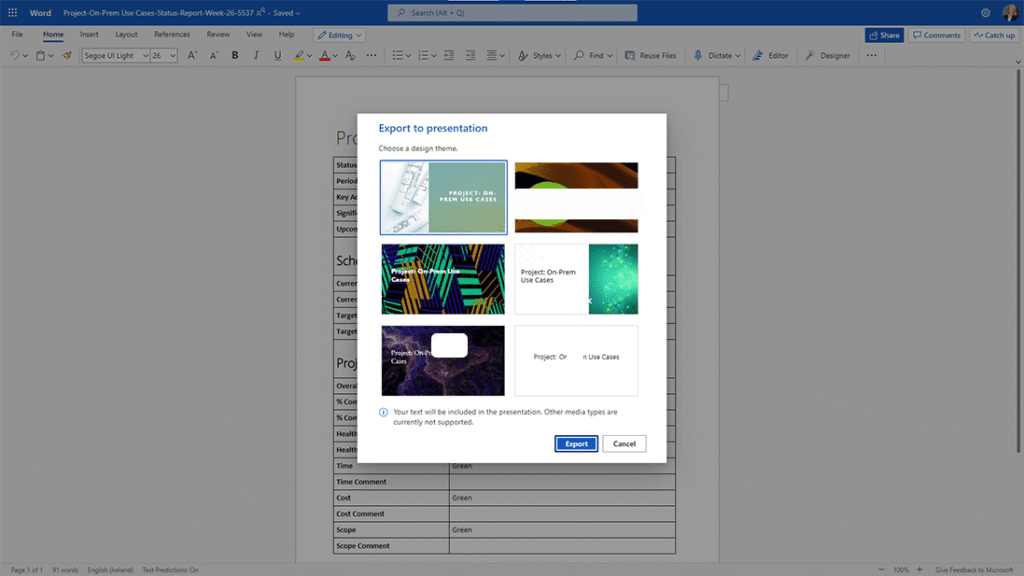
If you’re using Word Online, you can export a document to a PowerPoint presentation as a handy starting point.
2. Organize your ideas
Keep content simple with one idea per slide. Despite what we like to think, humans are not wired to multitask. Your audience cannot read a dense slide, listen to you, and understand the message of your presentation at the same time.
In reality, you only have about 3 seconds for someone to view a slide and grasp the meaning before switching their attention back to you.
Each slide should have just one idea – use as many slides as you need to! Use slide notes to capture any extra information you need to remember and practice in advance.
3. Build a Polished and Professional Deck with Designer
Before we dig into PowerPoint Designer, let’s take a quick look at slide design options in PowerPoint.
These include:
-
Using a custom theme or presentation template.
-
Including a voice recording to allow users to view your presentation in their own time.
-
Adding tables and SmartArt to share important data and processes.
-
Including interactive elements like transitions and animations.
Establishing a task workflow is key to managing the flow of information. This will ensure that data and tasks are prioritized properly.
Use PowerPoint Designer for AI-Driven Slide Suggestions
When used effectively, Microsoft PowerPoint is a powerful communication tool. However, users are often too busy or don’t have the skills needed for effective decks or engaging presentation design.
That’s where PowerPoint Designer comes in. It is an AI-driven design assistant that can transform your presentations from drab to engaging with a few clicks.
Add Visual Elements for Better Communication
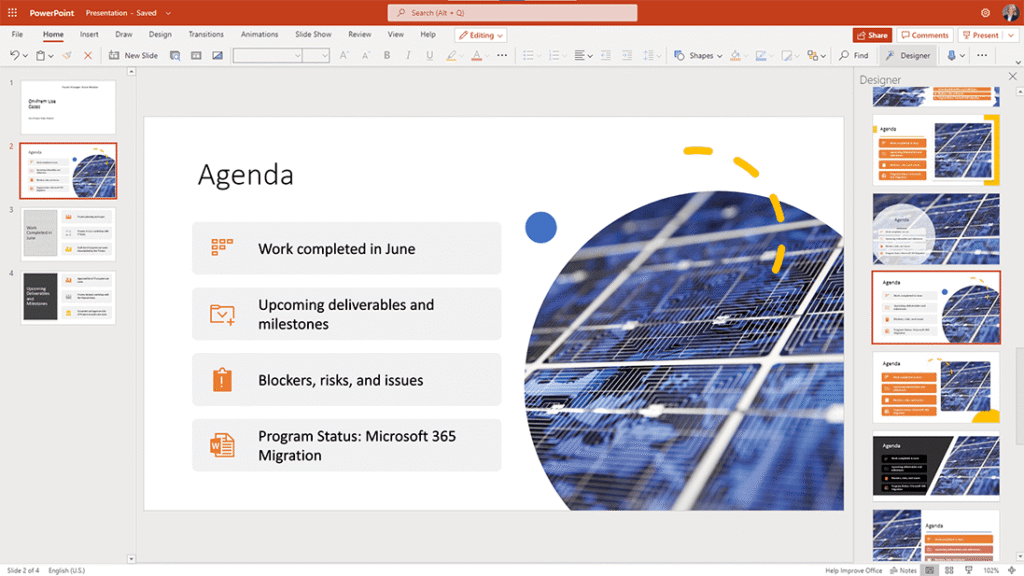
As you work on the deck, PowerPoint Designer analyzes each slide and makes layout suggestions for text and graphics, which give engaging presentation ideas. To make your presentation more enjoyable, you can replace the text with visuals and bullet points with icons.
The feature is available for Microsoft 365 subscribers only, and you’ll need to work online to access suggestions. PowerPoint Designer is not available when using custom themes.
Steps to Start Using PowerPoint Designer
To start using PowerPoint Designer:
-
Log into your Microsoft 365 account and open PowerPoint in the apps launcher.
-
Start a new presentation using the content prepped earlier.
-
Populate a few slides with your content.
-
Next, open Designer in the Design tab or the ribbon. The pane opens on the right-hand side.
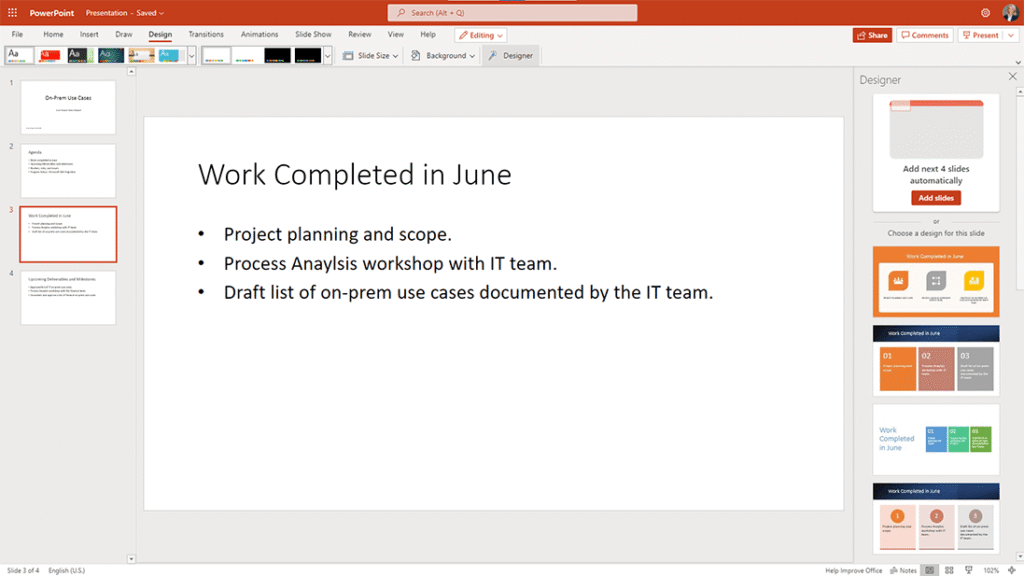
From here, you can:
-
Select ‘add the next four slides’ to access the recommended templates for the deck.
-
Apply designs on a slide-by-slide basis. This approach makes it a little trickier to maintain a consistent format throughout the deck.
Customize Your Presentation with Icons and High-Quality Visuals
Customize the proposed presentation design as needed, for example, change the color of an icon or select a new icon from the library.
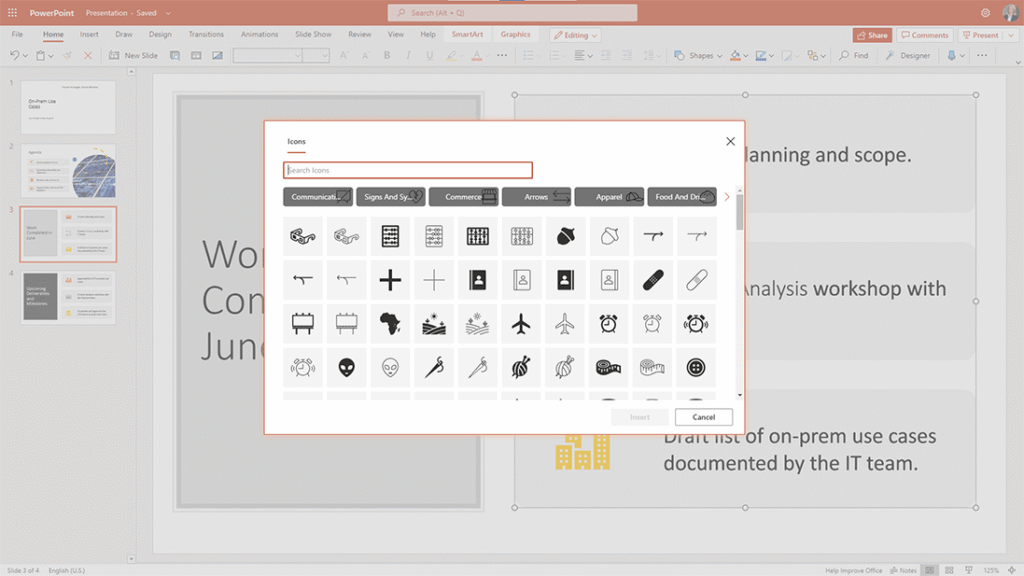
Thanks to an extensive image library, you can enhance your deck with high-quality photos.
4. Get feedback with Presenter Coach
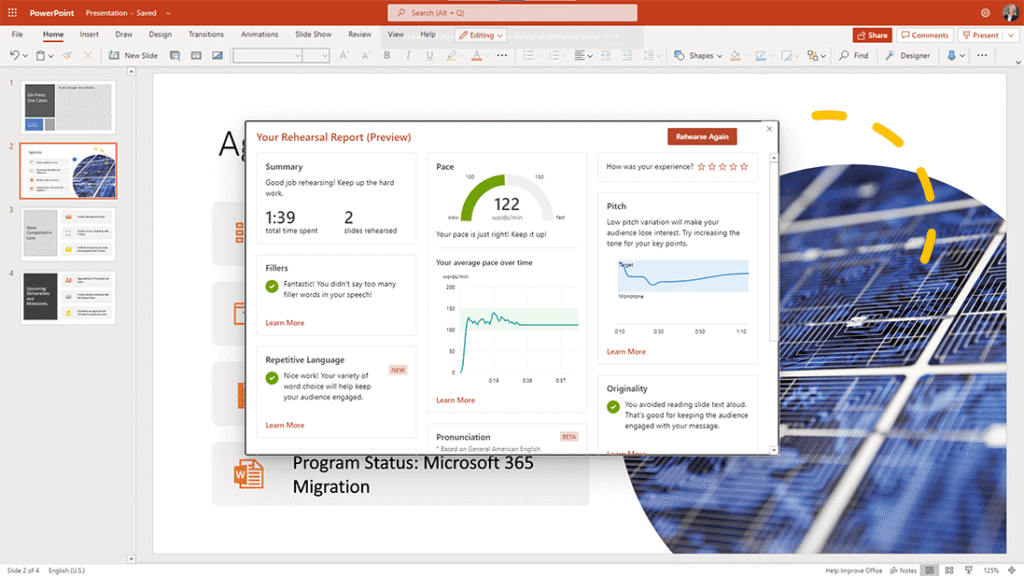
Next, it’s time to practice your presentation slide with the AI feature, Presenter Coach.
”Evaluates your pacing, pitch, your use of filler words, informal speech, euphemisms, and culturally sensitive terms, and it detects when you’re being overly wordy or are simply reading the text on a slide.”
Review Rehearsal Reports for Detailed Recommendations
Select Slideshow and ‘Rehearse with Coach.’ Practice to get real-time PowerPoint presentation tips, such as reminders to look at the camera.
When you’re finished, exit the full-screen view to access a Rehearsal Report. This is a detailed summary of observations and recommendations in key areas.
As the report is available once it’s closed, it’s a good idea to take a screenshot for later reference.
5. Make Presentations Interactive with Live Features
Presenting virtually poses many challenges. Is your audience engaged throughout the presentation? Is your content accessible to everyone? How to make an interactive PowerPoint presentation?
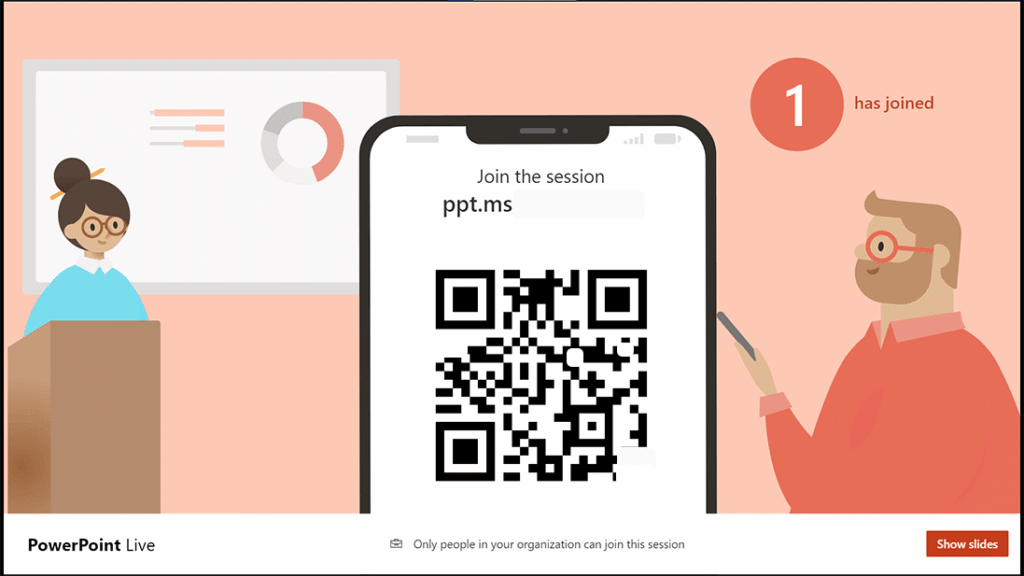
PowerPoint’s Live Presentations is an interactive experience aimed at creating engaging presentations.
By scanning a QR code, your audience can watch your presentation on a laptop, tablet, or phone.
Live Presentation Features
Key features include:
-
Moving back to previous slides if needed – without interrupting the presenter.
-
Enabling live transcriptions in over 60 languages.
-
Sharing live reactions (emojis) and comments during the presentation to make PowerPoint more engaging.
-
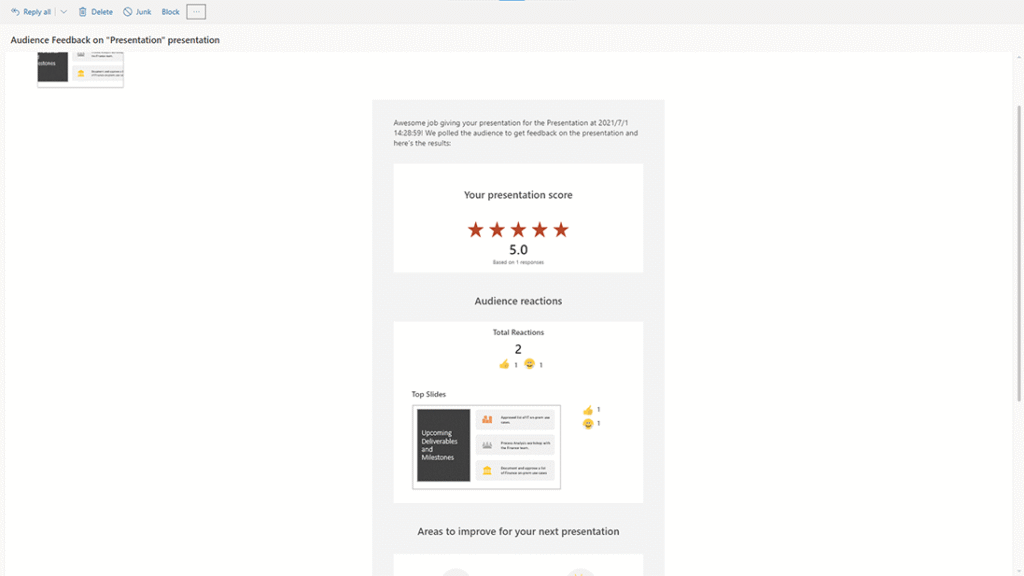
Sharing feedback via an optional poll after the presentation. The anonymous results are shared with the presenter via email.
To use Live PowerPoint Presentations, presenters must have a Microsoft 365 subscription. Audience members don’t need a subscription to participate in Live Presentations.
6. Deliver Dynamic Presentations with PowerPoint Live in Teams
PowerPoint Live for Microsoft Teams is similar to Live Presentations and offers extra enhancements for better virtual presentations.
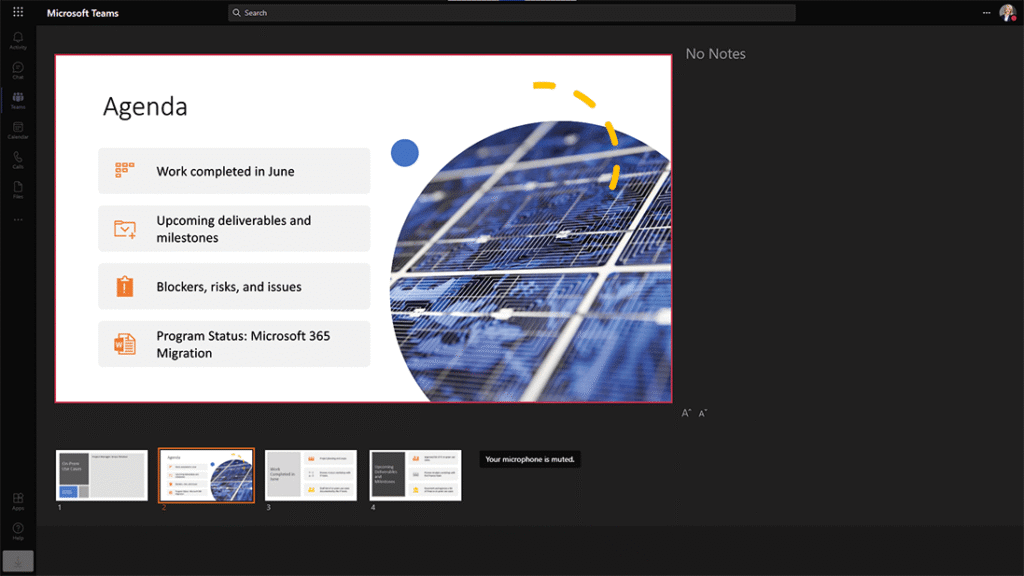
Access PowerPoint Live in the share tray during a Teams meeting. Open the relevant deck under ‘PowerPoint’ instead of sharing your screen.
Use Presenter View to Keep Engagement High
Here, you’ll use ‘Presenter View’, which displays your slides, notes, chats, and the audience in a single view.
This view makes it easier to manage your presentation whilst keeping an eye on audience engagement.
Enable Co-Presenting with Take Control Features
The ‘Take Control’ option allows any co-presenters to step in as needed. The handover is seamless – no need to ever say ‘next slide please’ again!
Enhance the Audience Experience with Interactive Features
Live helps in creating an engaging PowerPoint presentation that provides a richer experience audience, with live reactions and the ability to interact with hyperlinks and videos. The presentation is optimized for the device and network connection of each participant.
To view this video, please allow Functional cookies.

Editor’s Note: This post was originally published in June 2017 and has been updated for freshness, accuracy, and comprehensiveness.