

[et_pb_section fb_built=”1″ _builder_version=”3.22″][et_pb_row _builder_version=”3.25″ background_size=”initial” background_position=”top_left” background_repeat=”repeat”][et_pb_column type=”4_4″ _builder_version=”3.25″ custom_padding=”|||” custom_padding__hover=”|||”][et_pb_text _builder_version=”4.2.1″ background_size=”initial” background_position=”top_left” background_repeat=”repeat”]
A particular client had an issue exporting a report to Excel and got the following Excel error:
“An Unexpected error has occurred”

The following error message appearing during the loading of the file in Excel.

This is a generic SharePoint issue and can be resolved directly in Excel.
Excel Error Resolution:
For Microsoft Excel 2010 onwards:
- Open Microsoft Excel.
- Click File and then click Options.
- In Excel Options, click Advanced.
- Scroll down to General. Uncheck the box for ‘Ignore other applications that use Dynamic Data Exchange (DDE)’.
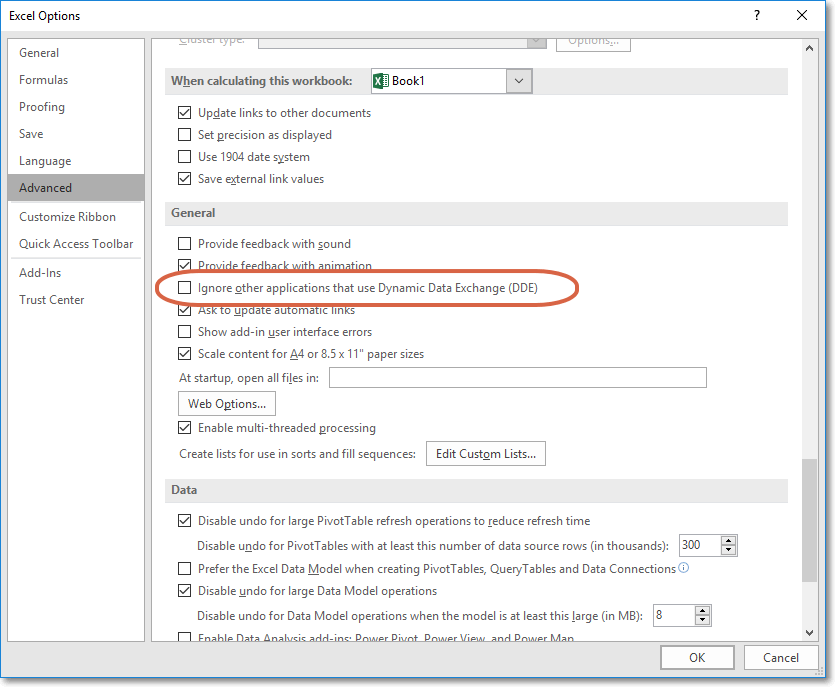
- Click OK
This should resolve the issue. If you are still experiencing problems with opening the file in Excel, please reach out to support@brightwork.com.
I hope this helps!
[/et_pb_text][/et_pb_column][/et_pb_row][/et_pb_section]
