
Key Takeaways
-
Follow a 3-Step Replanning Process
BrightWork 365 guides teams through assessing project status, updating the schedule, and communicating changes, ensuring quick recovery from delays or scope changes. -
Use Centralized Tools for Visibility and Control
The Gantt chart, status reports, and risk/issue tracking tabs provide a clear view of progress, ownership, and potential blockers, helping teams make informed decisions. -
Update Plans and Resources in Real Time
Teams can adjust tasks, reassign work, and recalculate baselines directly within the platform, with changes rolling up into portfolio-level reporting for executive oversight. -
Communicate Changes via Microsoft Teams
Posting updates in Teams ensures alignment across stakeholders and fosters collaboration, especially when timelines or deliverables shift. -
BrightWork 365 Enables Agile Project Management
Built on Microsoft 365, BrightWork 365 offers configurable templates, live reporting, and seamless integration to help teams adapt quickly and stay productive.
Your project is probably not going exactly as planned. That is why it is called a plan!
In this article, I’ll explain how to track and replan your project in BrightWork 365, the project and portfolio management solution for Microsoft 365.
Tracking and replanning are essential phases of the project management process, which covers the entire project life cycle from initiation and planning through to project execution and project closure.
We’ll cover three steps: assess the status of the work, replan the schedule, and communicate the updates with the team.
3 Steps to Tracking and Adjusting Your Project Plan
When a project drifts off schedule or key deliverables fall behind, it’s essential to take deliberate, informed action – fast.
BrightWork 365 provides a structured way to assess what’s happening, update your plan, and get everyone aligned again.
Here’s how to track progress, replan efficiently, and communicate changes with your team using BrightWork 365.
1. Assessing the status of the project
Before replanning, check the project site, which acts as a central hub for all information, to understand how work is progressing and what’s due next.
Review the document library to ensure you’re working with the latest files; proper document management with version control prevents confusion during this phase.
There are four areas to review in your BrightWork 365 project site:
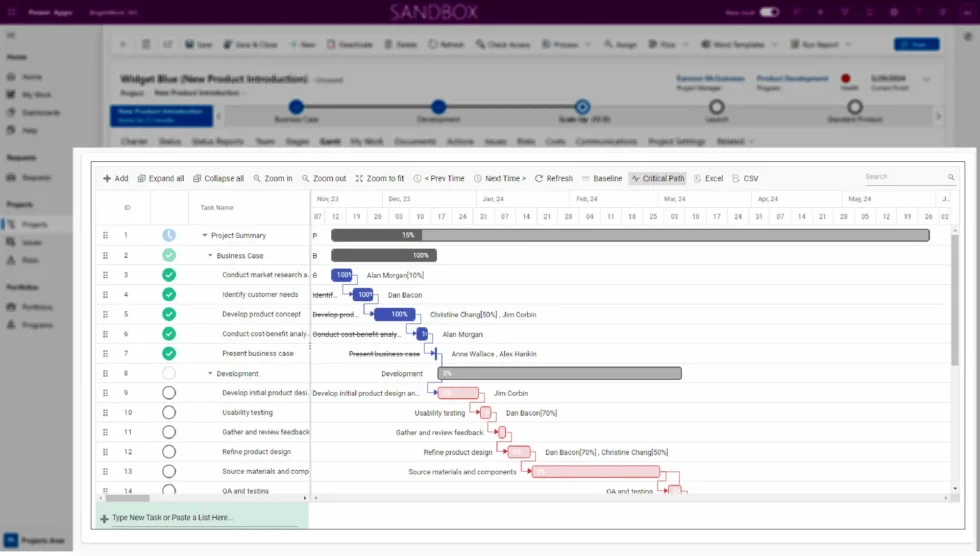
The Gantt Chart
The BrightWork 365 Gantt Chart provides a quick overview of the project timeline and task assignments with task owners. Use the chart to answer these questions:
-
Is the project on track?
-
If not, which tasks, deliverables, and milestones have slipped?
-
Who is responsible for overdue tasks and deliverables?
-
Are any tasks unassigned?
Recent reports
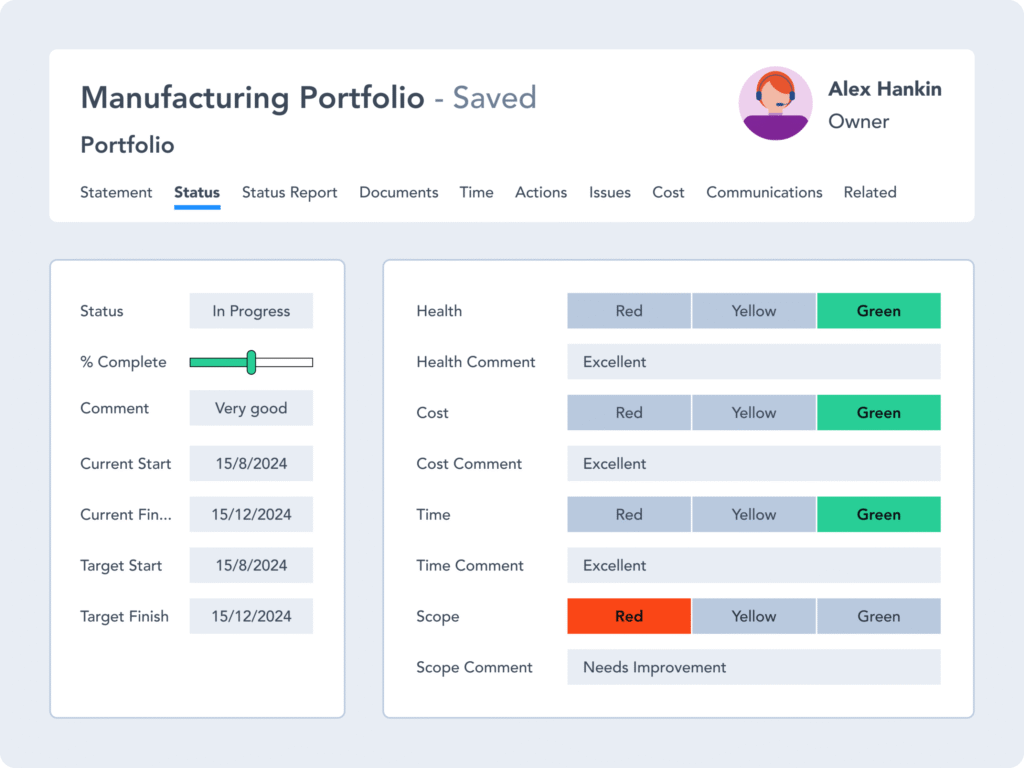
Next, check the recent status reports to understand the overall trend of the project.
Use the indicators to identify any problems with health, cost, time, and scope. This information is key to replanning your project.
If you need to generate or improve your status reports, see the guide on creating a high-quality, successful project status report.
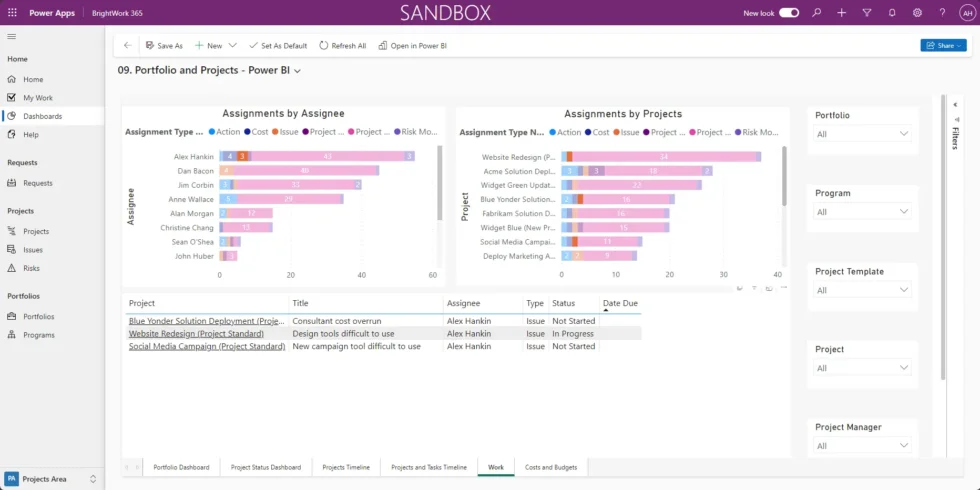
Risks and issues
The reports for Issues and Reports are located within these tabs. You can also manage the risk management process on a task-by-task basis using the ‘related items’ tab in the task.
Check the status of the issue or risk and follow up with the relevant team member as needed.
If needed, escalate the issue or risk to the program or portfolio level for help from the project sponsor.
2. Updating your project plan and schedule
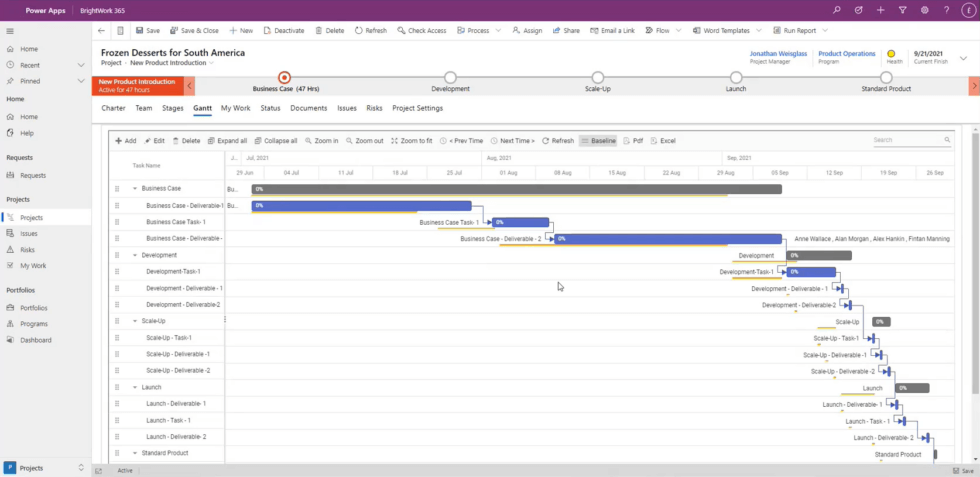
Start replanning by updating tasks and the timeline, including work.
-
Add new phases, tasks, or deliverables in the Gantt Tab.
-
Update existing tasks by moving dates or reassigning This is a vital part of resource management, where you might need to adjust resource allocation to keep the project on track.
-
Some teams find it useful to visualize these changes on kanban boards, and these updates can automatically roll up into portfolio reporting for executive oversight.
Adjusting target dates and baselines
If needed, you can adjust the target dates and recalculate the baseline in the Project Settings tab.
Update the project charter; this often means revisiting the original project objectives to manage scope creep or update timelines for key deliverables.
Finally, create a new status report outlining the changes and send the report to the project stakeholders and the team.
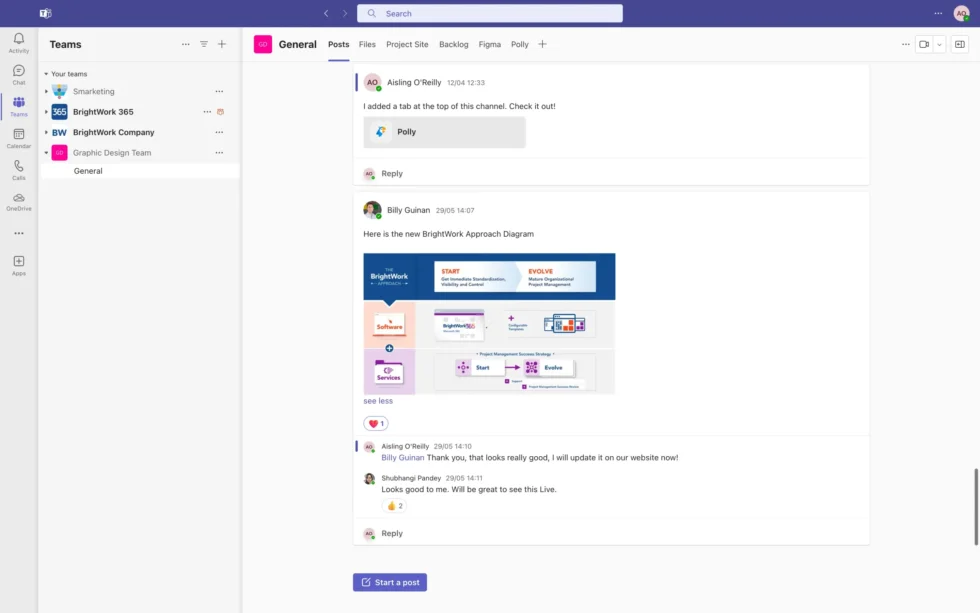
3. Communicating project updates via Microsoft Teams
It’s also a good idea to post a message about the latest changes in the project using Microsoft Teams. This ensures that updates reach not just the team but also key stakeholders and the project sponsor.
Realigning everyone with the plan helps maintain the strong project team collaboration established during the initial kick-off meeting.
Your team can quickly discuss the changes, share ideas, and ask for clarification using the essential Microsoft Teams apps.
Turn Setbacks Into Action with BrightWork 365
Even the most carefully planned projects encounter delays, shifting timelines, or resourcing gaps. BrightWork 365 helps you respond quickly – reviewing progress, updating schedules, and keeping everyone aligned without disrupting momentum.
With a centralized project hub, configurable templates, and real-time reporting, BrightWork 365 enables teams to track, replan, and communicate updates efficiently. Built on Microsoft 365, it integrates seamlessly with your existing tools for streamlined collaboration.
See how BrightWork 365 supports project teams with flexible planning and built-in control.